🎈Winter Savings Special Sale 🎁
00
DAYS
00
HRS
00
MINS
00
SECS



If you’ve just purchased a CRM snapshot or received one from a partner, you’re probably wondering how to actually get it into your system. Good news—it’s easier than you think! Whether you’re setting up for a client or upgrading your own CRM, importing a snapshot can save you hours of time and effort.
Let’s walk through the entire process together.
✅ What’s included in a typical CRM snapshot
✅ How to access your snapshot
✅ Step-by-step guide to importing it into your CRM
✅ What to do after import
✅ Where to get help if you run into issues
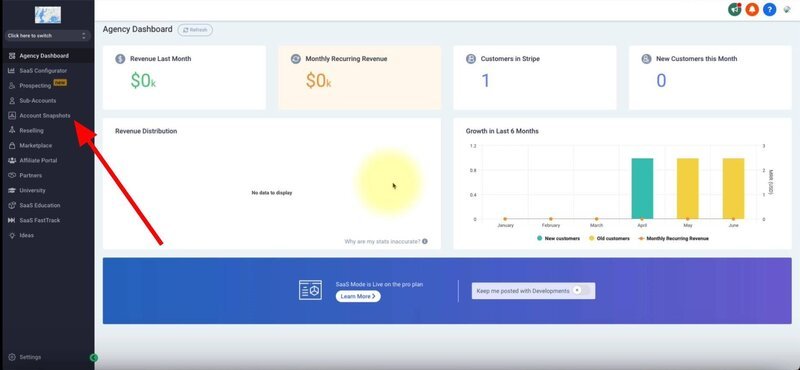
snapshot is like a done-for-you template that includes pre-built CRM assets such as:
Funnel and website pages
Automation workflows
Forms and surveys
Custom values and fields
Calendars and booking links
Email and SMS templates
Review and appointment automations
Basically, it’s a jumpstart package so you don’t have to build everything from scratch.
When you purchase or receive a snapshot from gohighlevelshop.com, here’s what’s typically included:
Two versions of the funnel – for different offers or flows
Custom values – to manage branding and business info in one place
Forms and surveys – for lead capture and client intake
Calendars – pre-integrated for seamless bookings
Automations – including:
GPT chatbot for FAQs
Instagram and Facebook auto-replies
Appointment reminders and follow-ups
Campaigns: cold, nurture, reactivation
Missed call text back
Review request flows
Holiday message scheduler
Error handling and SMS alerts
Within 24 hours of your purchase, you’ll receive an email from our team that includes:
✅ A snapshot share link
✅ Step-by-step instructions
If you can’t find the email, check your spam or promotions folder.

The email will include a link that looks like this:
https://app.gohighlevel.com/snapshots/abc123
Copy that link to your clipboard.

Paste the snapshot link into Chrome, Firefox, or Safari.
Once loaded, you’ll see the HighLevel interface asking you to import a snapshot.
Click “Import” or “Add to My Account.”
The system will now import:
Funnels
Workflows
Forms
Calendars
Emails and texts
Custom values and more
This can take a few minutes depending on your internet speed.
Once the snapshot is imported, you’ll want to assign it to the correct sub-account.
Go to:
Settings > Accounts
Choose the sub-account you want to apply it to
Click “Load Snapshot” and select your imported snapshot
Once your snapshot is successfully imported into your CRM, there are a few essential steps to customize it for your business or your client’s brand. Think of the snapshot as a powerful framework—you’ll now personalize it to make it truly yours.
Navigate to:
Settings > Custom Values
Custom values make it easy to update contact info across your entire account in just one place. Here’s what to update first:
Business name
Logo URL
Phone number
Email address
Website URL
Social media links
Calendar links
Location address
These values will auto-fill into your funnels, emails, and automations—saving you hours of manual editing.

Go to:
Automation > Workflows
Here’s how to fine-tune your automations:
Turn workflows ON: Many are imported in draft/off mode.
Replace test emails/numbers with your real ones.
Insert your own calendar links where needed.
Customize email/SMS copy to match your brand voice.
Set delays/timings according to your funnel goals.
Make sure to test each workflow with a dummy contact to ensure it functions as intended.

Head over to:
Sites > Funnels > Select your funnel
Each funnel page comes with placeholder content. Update the following:
Headline and subheadings
Button text and call-to-actions
Testimonials or client logos
Service descriptions
Images, logos, and brand colors
Legal disclaimers or terms pages (if included)
Make sure your funnel aligns with your current offer, tone, and goals. A compelling headline and clear value proposition can make all the difference!

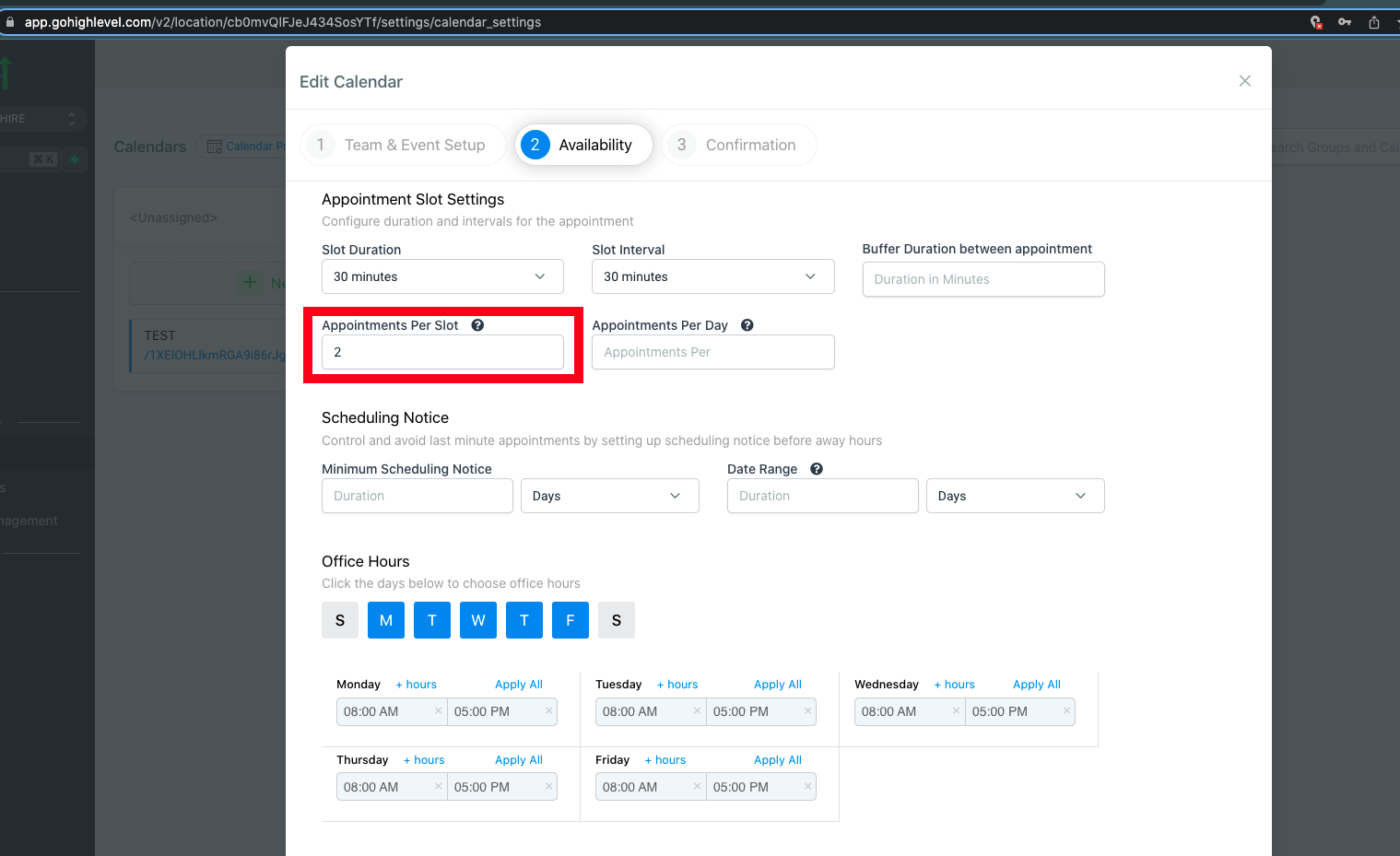
Where to go: Settings > Calendars
Confirm your calendar is connected to Google or Outlook
Update calendar name and description
Adjust availability, time zone, and booking settings
Add meeting location (Zoom link, in-person, or call)
Test a booking to ensure confirmation and reminders are working
If your snapshot included a calendar funnel, make sure the embedded calendar points to the correct one.
Where to go: Settings > Domains
Connect your custom domain to the sub-account
Ensure each funnel or website is mapped correctly
Add SSL to secure the site with HTTPS (toggle in Domain settings)
Test the domain in an incognito window to confirm setup

Preview each funnel page on mobile
Ensure text is not cut off or overlapping
Verify button size is thumb-friendly
Test forms, calendars, and links
Where to go: Sites > Funnels / Websites > Footer Section
Make sure your footer has:
Up-to-date address and contact info
Social media links
Navigation to privacy and terms pages
Your copyright information

Absolutely! All funnels are customizable once inside your CRM.
We provide variations optimized for different campaigns or use cases (like local vs national targeting).
You’ll receive your snapshot via email within 24 hours of your purchase. If you haven’t received it, check your spam or promotions folder or contact our support team.
No, importing a snapshot only adds new assets (funnels, automations, values, etc.). It won’t delete or overwrite your existing data.
Importing a snapshot into your CRM opens the door to automation, lead capture, and consistent branding—without starting from scratch. With just one link and a few minutes, you’ll be well on your way to scaling your business with smarter systems.
If you’ve ever struggled with A2P 10DLC registration, you know how confusing and rejection-prone the process can be. One small
Build Powerful Workflows Just by Speaking Imagine building a complete automation without typing a single word. No clicking through triggers.
Design smarter. Move faster. Stop switching tabs. If you’ve ever designed something in Canva, downloaded it, uploaded it into your
The Smart Way to Re-Engage Leads Without Manual Work Leads don’t always ghost you on purpose. Sometimes they get busy.
AI automation is evolving fast. If you’ve ever wished you could fully control AI tasks inside your CRM without relying
Build Powerful Workflows Just by Speaking Imagine creating an entire workflow without touching your keyboard. No typing. No complicated setup.

Pick a design that fits your brand.

Integrate it seamlessly.

Tailor it to your business needs.

Start generating leads and sales.
No account yet?
Create an AccountWe use cookies to improve your experience on our site. By using our site, you consent to cookies.
Websites store cookies to enhance functionality and personalise your experience. You can manage your preferences, but blocking some cookies may impact site performance and services.
Essential cookies enable basic functions and are necessary for the proper function of the website.
These cookies are needed for adding comments on this website.
Google reCAPTCHA helps protect websites from spam and abuse by verifying user interactions through challenges.
These cookies are used for managing login functionality on this website.
Stripe is a payment processing platform that enables businesses to accept online payments securely and efficiently.
Service URL: stripe.com (opens in a new window)
Statistics cookies collect information anonymously. This information helps us understand how visitors use our website.
Google Analytics is a powerful tool that tracks and analyzes website traffic for informed marketing decisions.
Service URL: policies.google.com (opens in a new window)
Clarity is a web analytics service that tracks and reports website traffic.
Service URL: clarity.microsoft.com (opens in a new window)
SourceBuster is used by WooCommerce for order attribution based on user source.
You can find more information in our Privacy Policy and .



