🎈Winter Savings Special Sale 🎁
00
DAYS
00
HRS
00
MINS
00
SECS


If you’ve ever wished your workflows could think before sending a message, you’re going to love what’s new in HighLevel. With the new OpenRouter integration, you can now plug in 300+ advanced AI models like GPT-4, Claude, Gemini, and many more directly into your automations.
From generating personalized messages to summarizing form responses, OpenRouter gives HighLevel users a flexible way to automate smarter, faster, and more creatively.
OpenRouter is a universal gateway to dozens of AI providers. Think of it as an “AI marketplace” where you can access top-tier models from OpenAI, Anthropic (Claude), Google (Gemini), Cohere, Mistral, and more—all from a single API.
By integrating OpenRouter into HighLevel Workflows, users can:
Before this integration, AI content in HighLevel was limited to predefined features like Content AI or Conversation AI. Now, you control the prompts, outputs, and flow—which is huge for marketers, agencies, and SaaS builders.
Let’s break it down with examples you can actually use:
“Hey {{contact.first_name}}, thanks for booking a call! Here’s what to expect during your {{service.name}} consultation.”
Prompt Used:
“Write a friendly SMS follow-up message using {{contact.first_name}} and {{service.name}}. Keep it under 160 characters.”
You get a detailed form and want to summarize it for your CRM notes.
Prompt Used:
“Summarize this form data in 3 bullets.”
Trigger a response when someone sends a WhatsApp or SMS.
Prompt:
“Act as a support agent. Respond kindly and professionally to this message: {{inbound_message}}.”
“{{contact.first_name}}, here’s your tailored plan for {{goal}}.”
Prompt:
“Create a short marketing email explaining a 3-step solution to {{goal}}, written in a friendly, confident tone.”
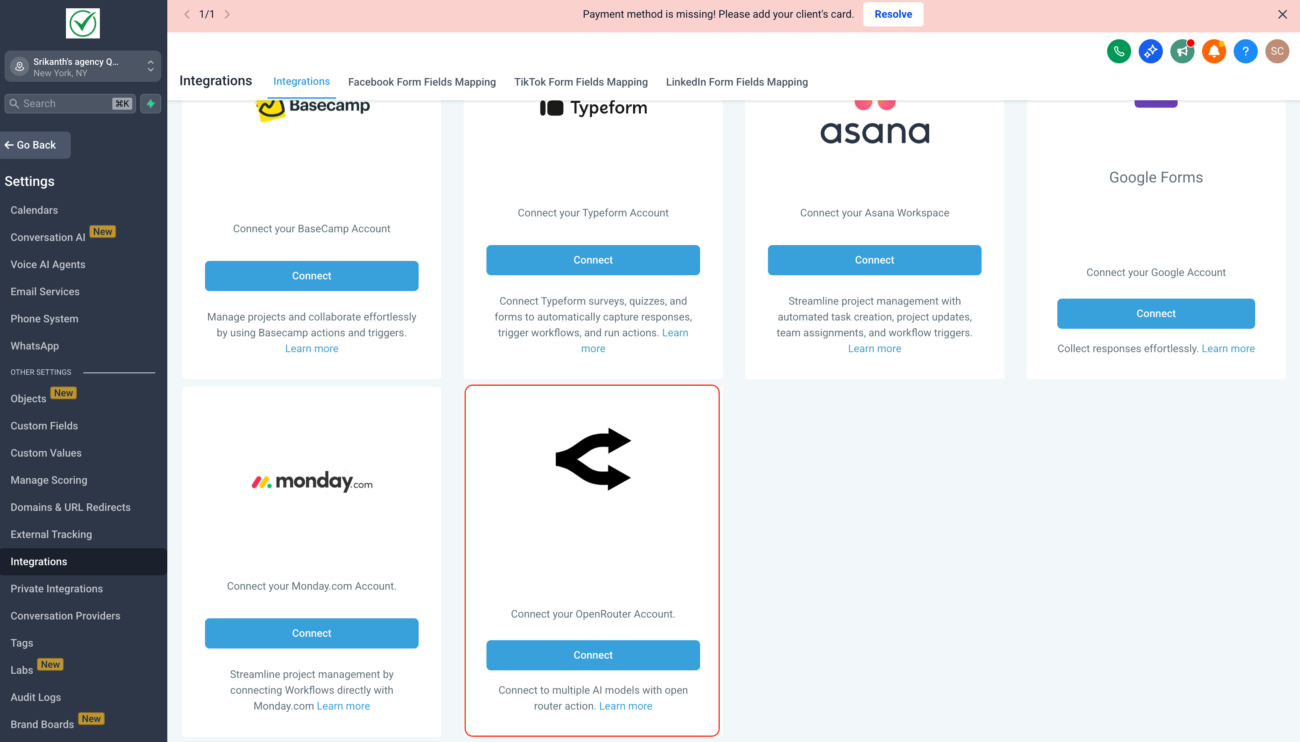
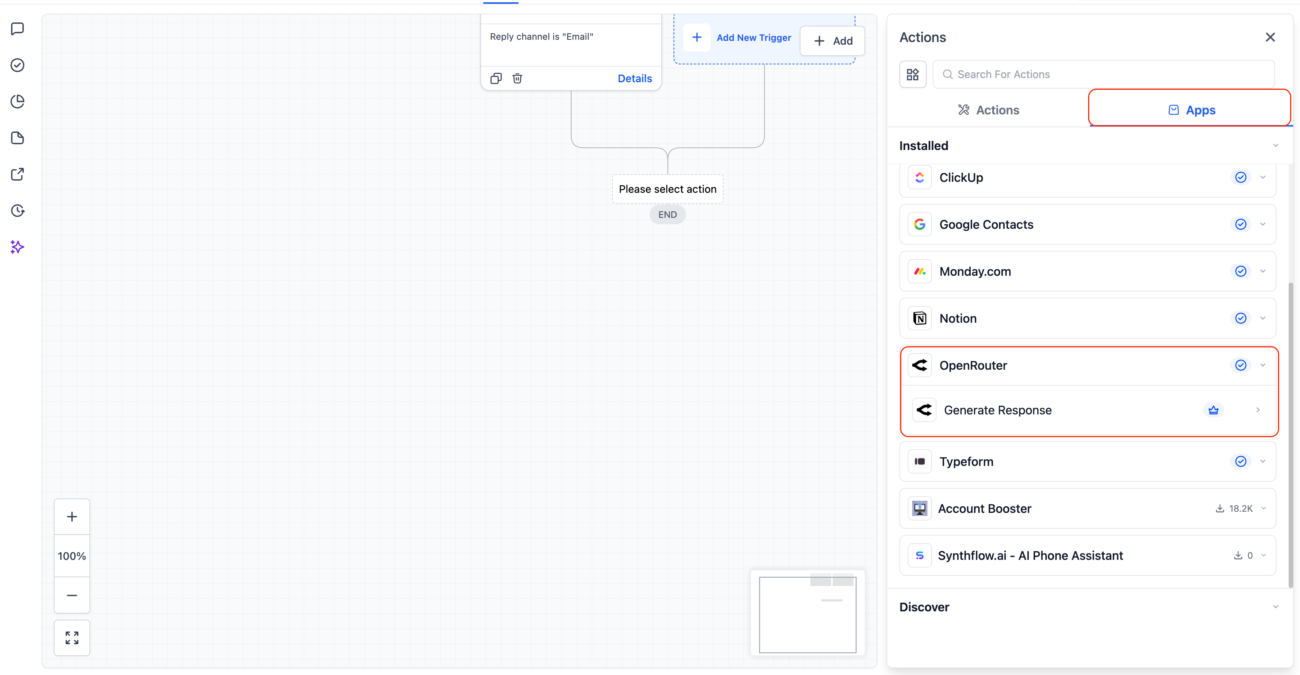
You don’t need to be a developer to set this up. Here’s how to get started:
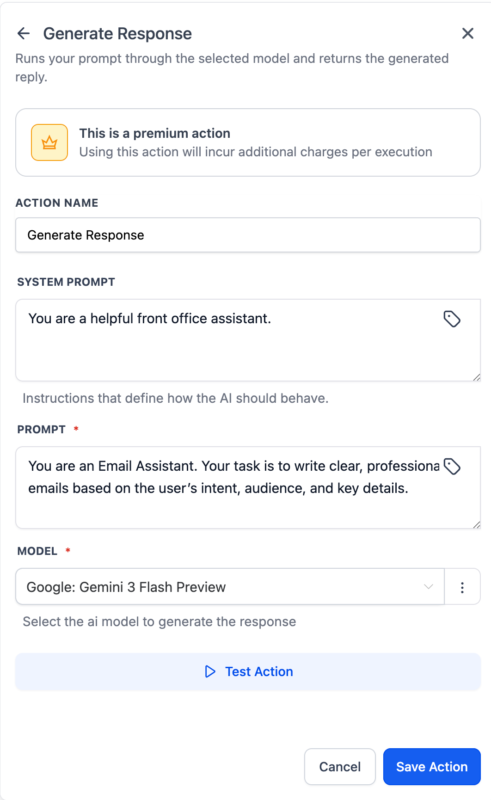
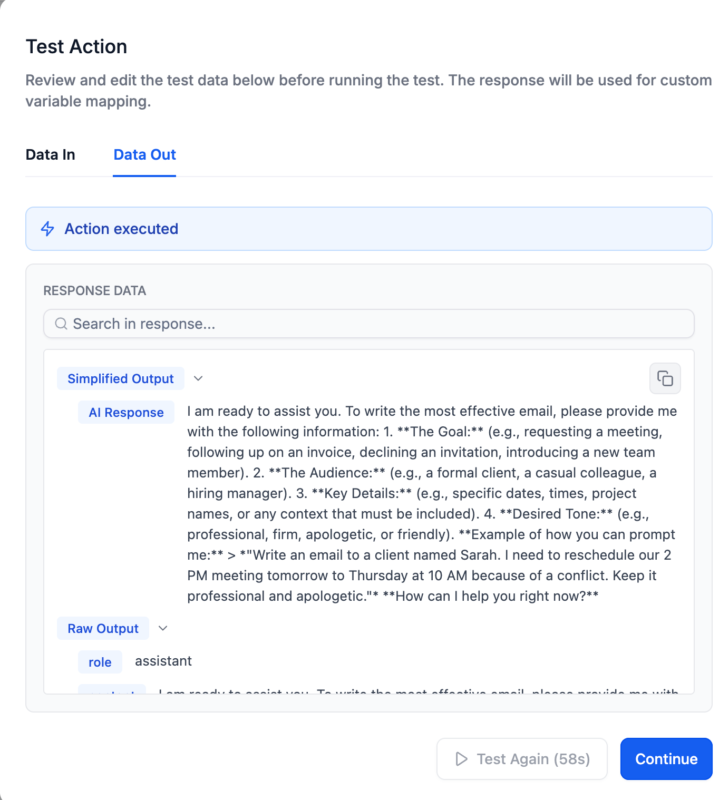
Click Test Action to preview the AI’s response. If it looks good, save it.
You can now insert the AI’s response into:
OpenRouter is a premium integration, so let’s clarify how pricing works.
OpenRouter actions are Premium Workflow Actions, meaning:
You’ll be billed for automation usage, based on your plan’s limits or any overages.
OpenRouter charges per model/token usage, depending on what you choose. Here’s a snapshot:
| Model | Cost (per 1K tokens) | Best For |
|---|---|---|
| GPT-3.5 Turbo | ~$0.002 | Fast, affordable basic responses |
| GPT-4 Turbo | ~$0.01 | Advanced understanding & creativity |
| Claude Instant | ~$0.004 | Balanced performance and speed |
| Claude 2.1 | ~$0.008 – $0.012 | Deep context, long conversations |
| Gemini 1.5 Flash | ~$0.0035 | Fast, efficient tasks |
| Cohere Command R+ | ~$0.0015 | Super cheap, good for structured tasks |
💡 Tip: Always check OpenRouter’s pricing dashboard for the most accurate live rates.
To get high-quality results, your prompts matter. Here are expert tips:
✅ Use a clear and direct prompt
❌ “Write something good.”
✅ “Create a friendly SMS thanking {{contact.name}} for booking a demo.”
✅ Use the System Prompt to control tone or role
“You are a creative marketing assistant who writes catchy Instagram captions.”
✅ Keep prompts concise
Too much input = confusion. Stick to 1–2 clear goals per prompt.
✅ Use variables
Add personalization by inserting fields like
{{contact.name}}
{{appointment.time}}
{{location.city}}
✅ Test multiple models
Some are better for speed, others for nuanced or long-form content.
Yes. You can personalize content using supported variables like {{contact.first_name}}.
No. OpenRouter usage is billed separately. You must bring your own API key and fund your usage directly through OpenRouter.
Not at all. Everything is done inside the visual workflow builder.
Yes. Save it to a custom field, or use it in follow-up steps or conditional branches.
Different use case. Conversation AI is for chatbots and FAQs. OpenRouter is for dynamic content creation inside your workflow logic.
The OpenRouter + HighLevel integration is a major leap forward for automation and AI-powered marketing. Whether you’re creating smart replies, automating follow-ups, or building personalized workflows at scale, this feature helps you do it all—without leaving your dashboard or writing a single line of code.
It’s flexible, powerful, and open-ended—perfect for agencies, SaaS builders, coaches, and local businesses who want to leverage the best AI tools without being locked into one provider.
So if you’ve been waiting for a way to bring real AI muscle into your workflow automations…
👉 Head into your HighLevel Workflow Builder and search for “OpenRouter.”
Then let the AI do the heavy lifting—while you focus on growing.
If you’ve ever struggled with A2P 10DLC registration, you know how confusing and rejection-prone the process can be. One small
Build Powerful Workflows Just by Speaking Imagine building a complete automation without typing a single word. No clicking through triggers.
Design smarter. Move faster. Stop switching tabs. If you’ve ever designed something in Canva, downloaded it, uploaded it into your
The Smart Way to Re-Engage Leads Without Manual Work Leads don’t always ghost you on purpose. Sometimes they get busy.
AI automation is evolving fast. If you’ve ever wished you could fully control AI tasks inside your CRM without relying
Build Powerful Workflows Just by Speaking Imagine creating an entire workflow without touching your keyboard. No typing. No complicated setup.

Pick a design that fits your brand.

Integrate it seamlessly.

Tailor it to your business needs.

Start generating leads and sales.
No account yet?
Create an AccountWe use cookies to improve your experience on our site. By using our site, you consent to cookies.
Websites store cookies to enhance functionality and personalise your experience. You can manage your preferences, but blocking some cookies may impact site performance and services.
Essential cookies enable basic functions and are necessary for the proper function of the website.
These cookies are needed for adding comments on this website.
Google reCAPTCHA helps protect websites from spam and abuse by verifying user interactions through challenges.
These cookies are used for managing login functionality on this website.
Stripe is a payment processing platform that enables businesses to accept online payments securely and efficiently.
Service URL: stripe.com (opens in a new window)
Statistics cookies collect information anonymously. This information helps us understand how visitors use our website.
Google Analytics is a powerful tool that tracks and analyzes website traffic for informed marketing decisions.
Service URL: policies.google.com (opens in a new window)
Clarity is a web analytics service that tracks and reports website traffic.
Service URL: clarity.microsoft.com (opens in a new window)
SourceBuster is used by WooCommerce for order attribution based on user source.
You can find more information in our Privacy Policy and .



