🎈Winter Savings Special Sale 🎁
00
DAYS
00
HRS
00
MINS
00
SECS


If you’re using Conversation AI to handle customer interactions, you’re already ahead of the game. But what if you could automatically capture the essence of every conversation, store it inside your CRM, and trigger smart automations based on what was said?
That’s exactly what the Conversation AI Summary and Transcript feature is designed to do.
Instead of manually reviewing chat logs or trying to remember what happened in a session, the system generates structured summaries and transcripts for you — automatically. This keeps your CRM clean, your workflows powerful, and your follow-ups precise.
Let’s break everything down step by step.
The Conversation AI Summary and Transcript feature automatically generates a recap of each conversation session handled by your AI bot.
It creates:
These are generated per session and always reflect the most recent interaction.
This feature is especially powerful if you:
Understanding the behavior rules is critical.
Summaries and transcripts are generated per conversation session. When a new session starts:
Included messages:
Excluded messages:
This ensures accurate, session-specific tracking without mixing old data.
Follow these steps:
Important note
By default, summaries are disabled. You must manually turn this on.
Also, remember that messages sent before enabling will not be included.
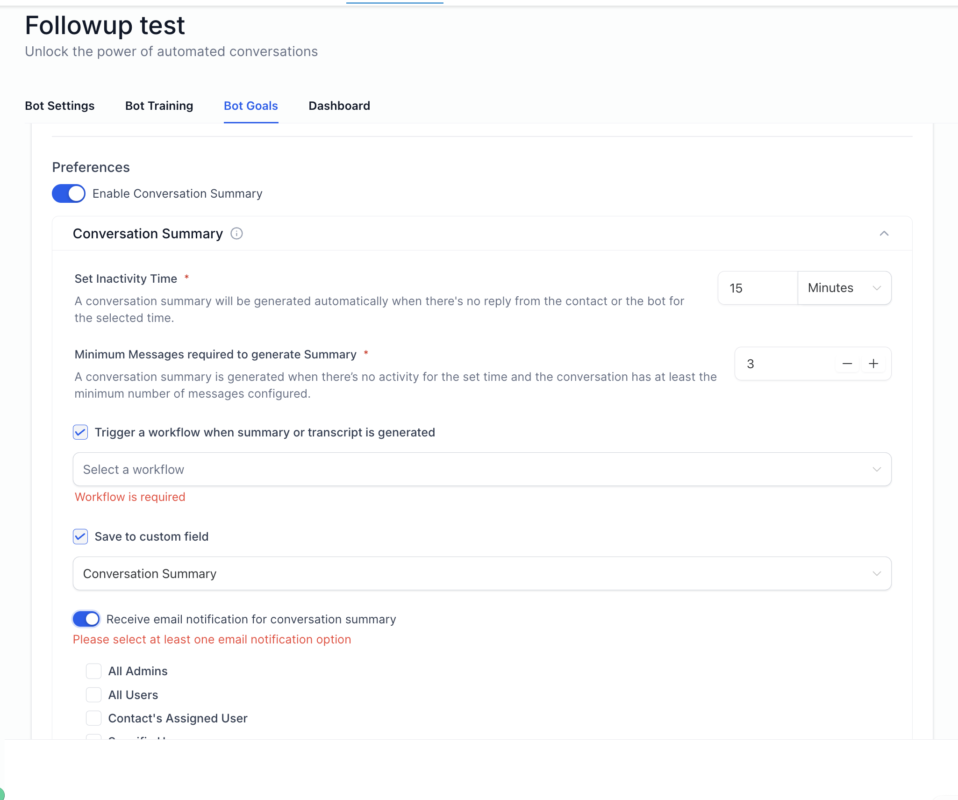
The real power comes from customizing how summaries are generated.
This determines how long the system waits before generating a summary.
Example:
This works well for sales conversations or support chats that naturally pause.
A summary is generated immediately if the bot goes to sleep due to:
This ensures you never lose session data when automation shifts.
You can set a minimum number of messages required before a summary generates.
If the conversation does not meet this threshold:
One of the most powerful settings is saving the summary directly to a contact field.
How it works:
This keeps your CRM clean and structured.
Imagine a sales rep opening a contact record and immediately seeing a summarized recap of the last AI interaction. That’s powerful.
This is where automation becomes intelligent.
You can trigger a workflow as soon as a summary is generated.
Now your CRM reacts automatically to AI conversations.
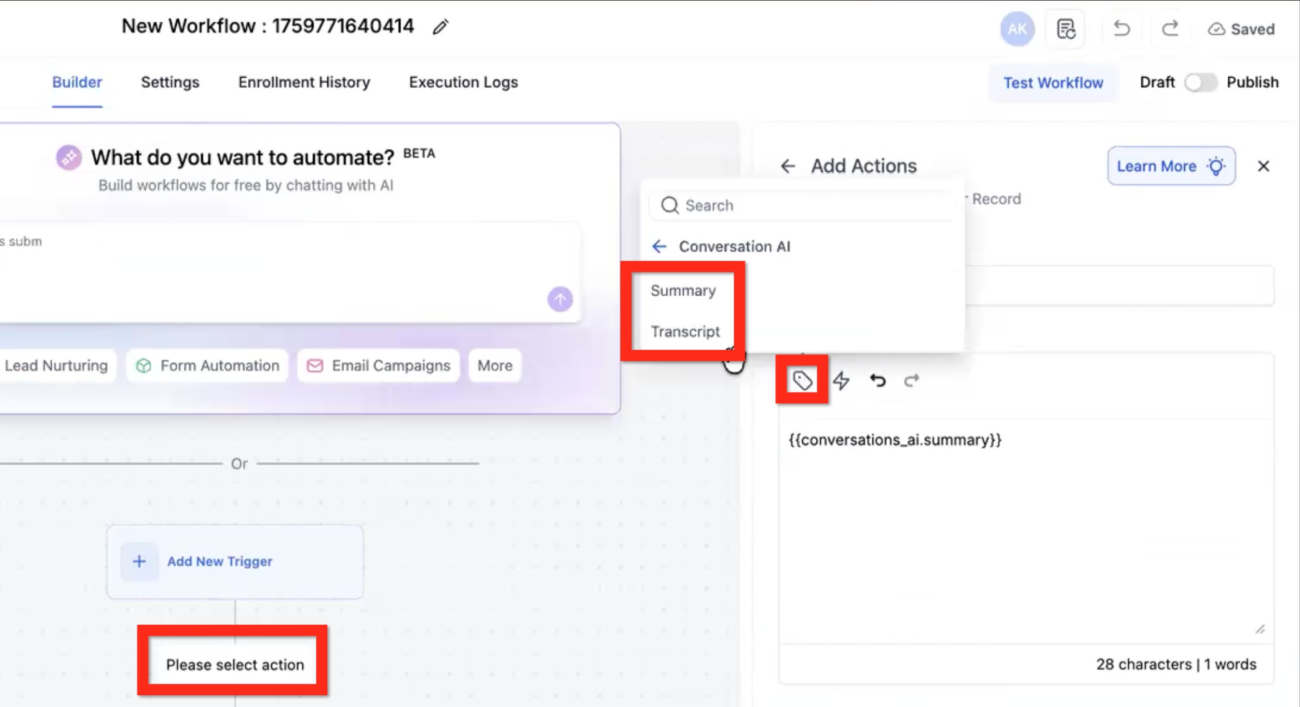
Inside workflows, you can access:
This means you can:
For advanced users, you can even run GPT actions on transcripts to extract structured data.
Example:
This turns passive chat logs into actionable intellige
You can configure automatic email notifications when a summary is generated.
Recipients can include:
This keeps your team aligned without manually checking conversations.
AI handles initial inquiry.
Summary extracts intent.
Workflow assigns a high-intent lead to a closer.
AI answers questions.
Summary detects an unresolved issue.
Workflow creates a support task automatically.
The bot handles booking.
Summary confirms the booked appointment.
CRM updates the opportunity stage instantly.
These rules prevent data overlap and confusion.
The Conversation AI Summary and Transcript feature is included within Conversation AI functionality.
Conversation AI pricing typically follows a usage-based model per message.
For example:
Important clarification
Conversation summaries do not incur additional separate fees beyond message usage. The cost is tied to AI conversation messages themselves.
Always verify your current plan to understand:
Yes. Both inbound and all outbound messages are included.
The Conversation AI Summary and Transcript feature transforms raw AI interactions into structured, actionable CRM intelligence.
Instead of manually reviewing chats, you get:
When configured correctly, this feature turns your AI bot from a simple responder into a fully integrated automation engine.
If you’ve ever struggled with A2P 10DLC registration, you know how confusing and rejection-prone the process can be. One small
Build Powerful Workflows Just by Speaking Imagine building a complete automation without typing a single word. No clicking through triggers.
Design smarter. Move faster. Stop switching tabs. If you’ve ever designed something in Canva, downloaded it, uploaded it into your
The Smart Way to Re-Engage Leads Without Manual Work Leads don’t always ghost you on purpose. Sometimes they get busy.
AI automation is evolving fast. If you’ve ever wished you could fully control AI tasks inside your CRM without relying
Build Powerful Workflows Just by Speaking Imagine creating an entire workflow without touching your keyboard. No typing. No complicated setup.

Pick a design that fits your brand.

Integrate it seamlessly.

Tailor it to your business needs.

Start generating leads and sales.
No account yet?
Create an AccountWe use cookies to improve your experience on our site. By using our site, you consent to cookies.
Websites store cookies to enhance functionality and personalise your experience. You can manage your preferences, but blocking some cookies may impact site performance and services.
Essential cookies enable basic functions and are necessary for the proper function of the website.
These cookies are needed for adding comments on this website.
Google reCAPTCHA helps protect websites from spam and abuse by verifying user interactions through challenges.
These cookies are used for managing login functionality on this website.
Stripe is a payment processing platform that enables businesses to accept online payments securely and efficiently.
Service URL: stripe.com (opens in a new window)
Statistics cookies collect information anonymously. This information helps us understand how visitors use our website.
Google Analytics is a powerful tool that tracks and analyzes website traffic for informed marketing decisions.
Service URL: policies.google.com (opens in a new window)
Clarity is a web analytics service that tracks and reports website traffic.
Service URL: clarity.microsoft.com (opens in a new window)
SourceBuster is used by WooCommerce for order attribution based on user source.
You can find more information in our Privacy Policy and .



