🎈Winter Savings Special Sale 🎁
00
DAYS
00
HRS
00
MINS
00
SECS


Design smarter. Move faster. Stop switching tabs.
If you’ve ever designed something in Canva, downloaded it, uploaded it into your CRM… then realized you needed to tweak one tiny detail — you already understand the frustration.
Download.
Upload.
Replace.
Rename.
Repeat.
It doesn’t seem like much at first. But when you’re building funnels, launching ads, updating email campaigns, or managing client assets daily, that tiny friction compounds fast.
That’s exactly why Canva Integration in Media Storage is such a powerful update. It brings Canva directly into your workflow so you can browse, edit, and import designs without the constant back-and-forth.
And once you start using it, going back feels unnecessarily complicated.
Let’s be honest. Most marketing delays aren’t caused by strategy problems.
They’re caused by workflow inefficiencies.
Here’s what a typical creative process looks like without integration:
Now there are multiple versions saved
Multiply that across multiple campaigns, multiple team members, and multiple revisions.
It creates:
Canva Integration in Media Storage removes those friction points.
Instead of treating Canva as a separate tool, the integration connects your Canva account directly to your location’s Media Storage.
Once connected, you can:
There’s no need to manually download files to your computer before uploading them.
Everything flows through one connected system.
And that small shift dramatically improves workflow efficiency.
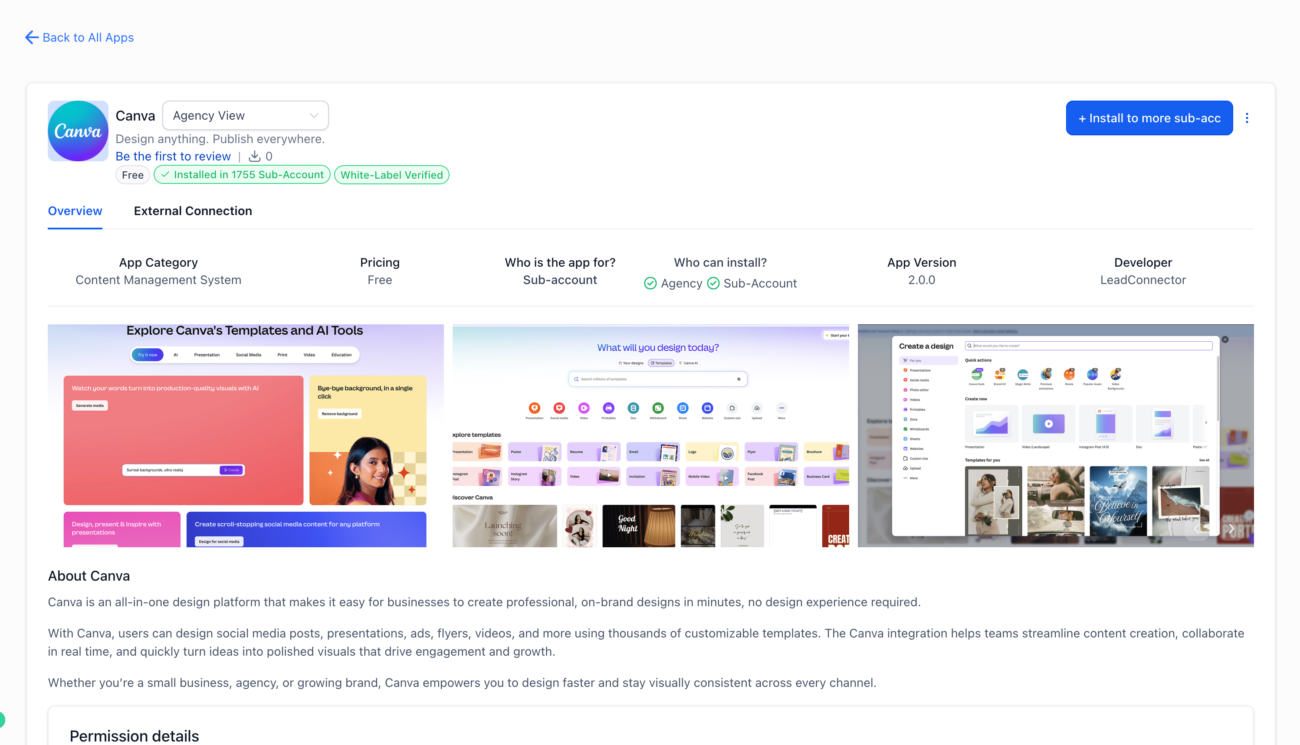
The integration operates at the location level.
Important structure rules:
These boundaries ensure clarity and prevent chaos in team environments.
You have two ways to connect Canva.
That’s it. No complicated setup.
Once connected, your Canva account is tied to that specific location.
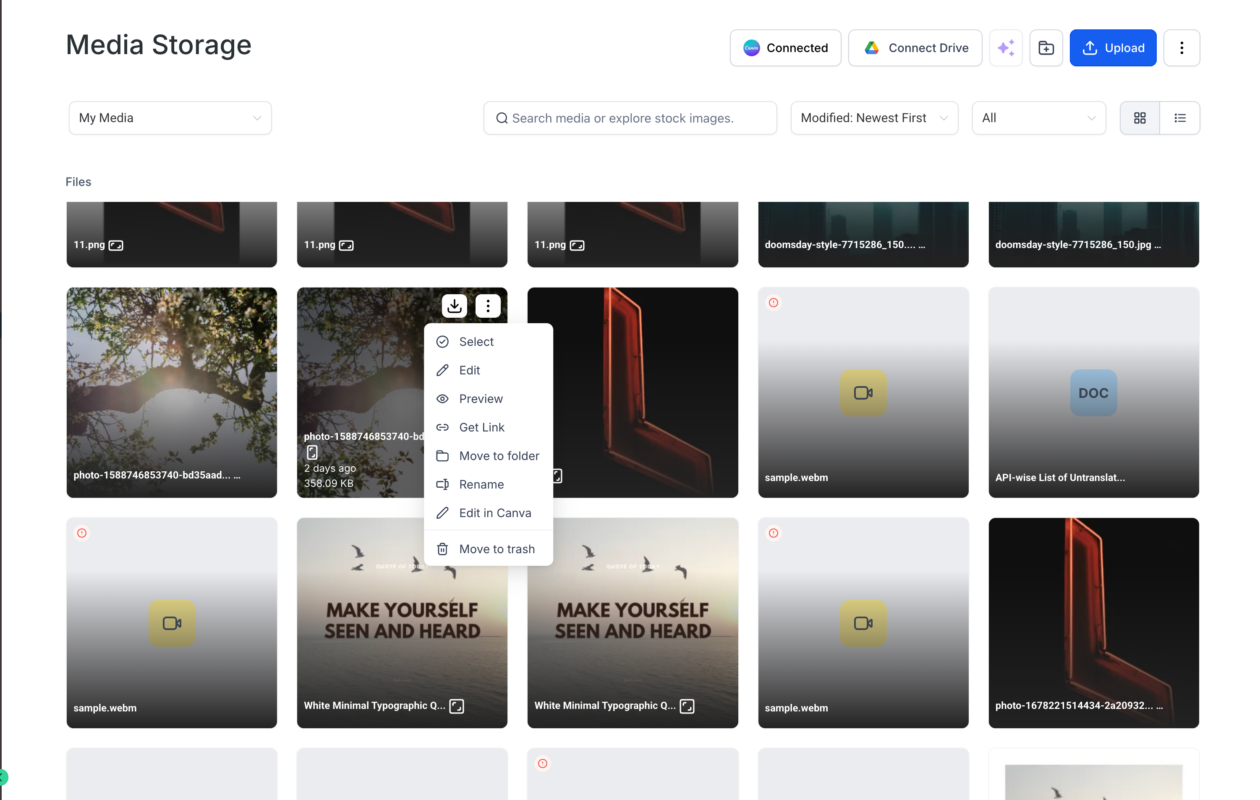
This is where the integration becomes genuinely valuable.
No downloads.
No file juggling.
If you’ve already imported a PNG, JPG, or JPEG file:
Smart Design Tracking prevents duplicate Canva copies when editing from My Media. This keeps your storage organized and reduces unnecessary file clutter.
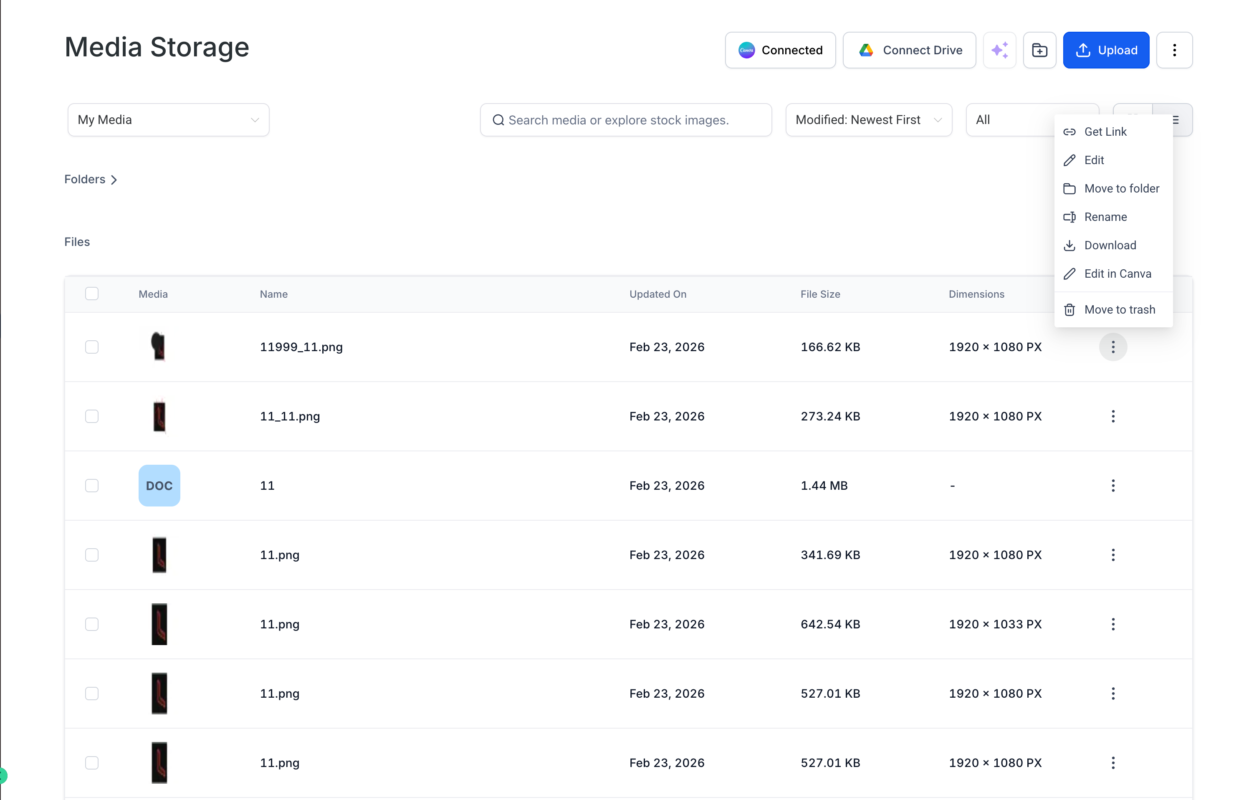
For solo marketers, this saves time.
For agencies, this prevents operational headaches.
Agencies typically deal with:
Without integration, version control becomes messy fast.
With Canva inside Media Storage:
It’s less about convenience.
It’s about scalability.
Before using a Canva design in:
You must import it into My Media.
Once imported, it functions like any other media asset inside your system.
One important note:
Private Canva files cannot be edited via integration.
Access is intentionally structured to protect workflows.
Installer
Other users
If a non-installer attempts to edit, they’ll receive a view-only access message.
This keeps collaboration organized without sacrificing control.
If you uninstall Canva via App Marketplace:
This ensures you never lose important assets.
There is no additional cost for using Canva integration inside media storage.
However, you must maintain an active Canva account.
Canva plans typically include:
Free Plan
Canva Pro
Canva Teams
The integration itself does not add additional platform fees.
To truly optimize your workflow:
Structure creates speed.
And speed creates leverage.
After using Canva integration consistently, most teams notice the following:
Small workflow improvements compound significantly over time.
No. Only one Canva account per location is supported.
Canva Integration in Media Storage isn’t flashy.
It doesn’t introduce complex automation.
It doesn’t reinvent marketing strategy.
What it does is remove friction.
And friction is the hidden tax on productivity.
By eliminating unnecessary downloads, reducing duplicate uploads, and centralizing creative workflows, this integration helps teams move faster with fewer mistakes.
Fewer tabs.
Fewer file versions.
Less confusion.
More execution.
And in marketing, execution speed is everything.
If you rely on Canva for design and use Media Storage to manage assets, this integration quietly transforms how smoothly your entire workflow operates.
Sometimes the most impactful upgrades aren’t dramatic.
They’re simply efficient.
If you’ve ever struggled with A2P 10DLC registration, you know how confusing and rejection-prone the process can be. One small
Build Powerful Workflows Just by Speaking Imagine building a complete automation without typing a single word. No clicking through triggers.
Design smarter. Move faster. Stop switching tabs. If you’ve ever designed something in Canva, downloaded it, uploaded it into your
The Smart Way to Re-Engage Leads Without Manual Work Leads don’t always ghost you on purpose. Sometimes they get busy.
AI automation is evolving fast. If you’ve ever wished you could fully control AI tasks inside your CRM without relying
Build Powerful Workflows Just by Speaking Imagine creating an entire workflow without touching your keyboard. No typing. No complicated setup.

Pick a design that fits your brand.

Integrate it seamlessly.

Tailor it to your business needs.

Start generating leads and sales.
No account yet?
Create an AccountWe use cookies to improve your experience on our site. By using our site, you consent to cookies.
Websites store cookies to enhance functionality and personalise your experience. You can manage your preferences, but blocking some cookies may impact site performance and services.
Essential cookies enable basic functions and are necessary for the proper function of the website.
These cookies are needed for adding comments on this website.
Google reCAPTCHA helps protect websites from spam and abuse by verifying user interactions through challenges.
These cookies are used for managing login functionality on this website.
Stripe is a payment processing platform that enables businesses to accept online payments securely and efficiently.
Service URL: stripe.com (opens in a new window)
Statistics cookies collect information anonymously. This information helps us understand how visitors use our website.
Google Analytics is a powerful tool that tracks and analyzes website traffic for informed marketing decisions.
Service URL: policies.google.com (opens in a new window)
Clarity is a web analytics service that tracks and reports website traffic.
Service URL: clarity.microsoft.com (opens in a new window)
SourceBuster is used by WooCommerce for order attribution based on user source.
You can find more information in our Privacy Policy and .



