🎈Winter Savings Special Sale 🎁
00
DAYS
00
HRS
00
MINS
00
SECS


GoHighLevel is a powerful all-in-one marketing and sales platform that allows businesses to manage their CRM, marketing automation, and learning management systems (LMS). With its robust features, GoHighLevel can be an excellent choice for businesses creating and managing online courses, training programs, or educational content. In this article, we’ll walk you through the steps to set up an LMS in GoHighLevel.
In this article, we learn about How to Set Up an LMS in GoHighLevel
A learning management system (LMS) is a software application that enables the creation, delivery, and management of educational courses and training programs. It’s commonly used by businesses, educational institutions, and organizations to provide online learning experiences. With GoHighLevel, you can leverage its built-in tools to create a seamless LMS for your audience.
LMS (Learning Management System) in GoHighLevel is a built-in feature that allows users to create, manage, and sell online courses and membership programs. It enables businesses, coaches, and agencies to provide structured learning experiences with videos, quizzes, and downloadable resources, all within GoHighLevel’s platform.
GoHighLevel offers several advantages for setting up an LMS:
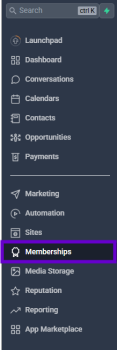
Step 1: Making Use of the Memberships Function
Open your GoHighLevel dashboard and log in.
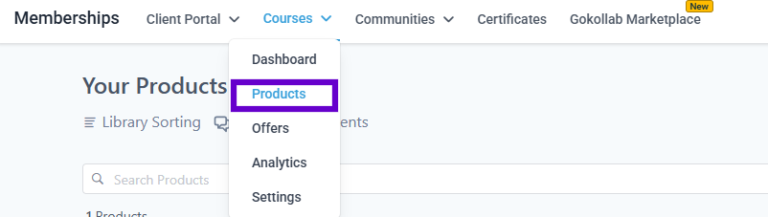
Go to Memberships under Sites.
To reach the LMS section, click Products.
This is where you will design lessons, construct courses, and control user access.
Step 2: Building Your First Course in the Second Step
Start a new course by clicking on Create Product.
Give your course a name and include a brief overview.
Select a cover photo or thumbnail.
Decide on a category, such as sales, marketing, or health.
To continue, click Save.
Step 3: Adding Instructional Materials
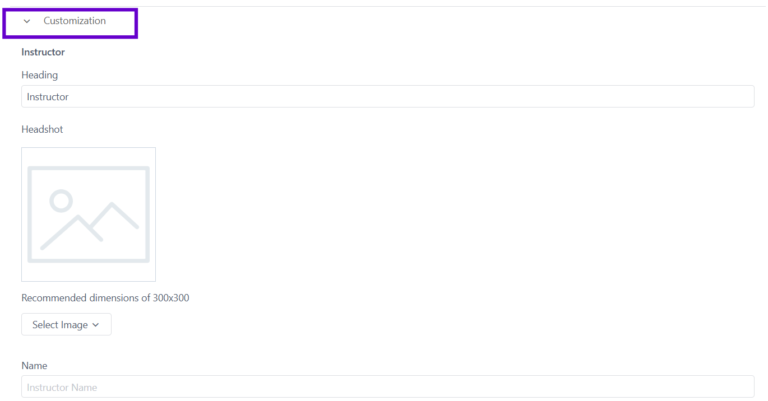
Courses and lessons make up the structure of any course.
To build course sections, select Add Category (Module).
To add lessons, click Add Post (Lesson) beneath each module.
Upload photos, text, videos, and PDFs.
Schedule the release of lessons (e.g., unlock after X days).
Turn on tests and quizzes to encourage student participation.
Step 4: Integrating Pricing and Payment
Integrate Stripe to sell courses:
Connect your Stripe account by going to Settings > Payments.
Make a new product using the cost of the course.
Attach the course’s pricing schedule.
Use the funnel builder provided by GoHighLevel to create a checkout page.
Learners can now enroll and buy automatically.
Step 5: Automating Enrollment with Workflows
Navigate to Workflows under Automation.
Make a new process.
Select “Purchase Completed” (Stripe) as the trigger.
“Grant Access to Membership” should be added as an action.
Provide login information via an automated email.
Students’ enrollment and onboarding go more easily as an outcome.
Step 6: Customizing the Portal for Membership
Navigate to the Membership Settings.
Add your brand’s colors and logo.
Personalize the email notifications and login page.
Include a discussion platform for learners to use.
Step 7: Promotion and Launching Your Learning Management System
Make a landing page with websites & funnels.
Create a free course as a lead magnet to draw in students.
To nurture leads, automate SMS and email.
Advertise on Google Ads, Facebook Ads, and social media.
Maintain simplicity: Begin with a basic course and grow it as you develop experience.
Engage Your Audience: To maintain interest among learners, use discussion boards, surveys, and quizzes.
Test Your Funnel: Make sure everything functions properly by testing your funnel before it launches.
Get Input: To make the next lesson better, get input from those who are attending.
No, GoHighLevel is designed to be user-friendly. Its drag-and-drop interface and pre-built templates make it easy for anyone to set up an LMS without technical expertise.
Yes, you can set up free courses by setting the course price to $0 and automating access.
Currently, GoHighLevel does not have a built-in certification feature, but you can manually create certificates and email them.
Yes, you can use GoHighLevel’s funnel builder and payment integrations to sell courses, while the LMS handles course delivery.
Setting up an LMS in GoHighLevel is a straightforward process that can help you deliver high-quality educational content to your audience. By leveraging GoHighLevel’s powerful features, you can create a seamless learning experience while managing your marketing and sales efforts in one place. Whether you’re a business owner, coach, or educator, GoHighLevel’s LMS capabilities can help you scale your online courses and training programs effectively.
Start building your LMS in GoHighLevel today and take your online education offerings to the next level!
Design smarter. Move faster. Stop switching tabs. If you’ve ever designed something in Canva, downloaded it, uploaded it into your

The Smart Way to Re-Engage Leads Without Manual Work Leads don’t always ghost you on purpose. Sometimes they get busy.
AI automation is evolving fast. If you’ve ever wished you could fully control AI tasks inside your CRM without relying
Build Powerful Workflows Just by Speaking Imagine creating an entire workflow without touching your keyboard. No typing. No complicated setup.
If you’re using Conversation AI to handle customer interactions, you’re already ahead of the game. But what if you could
If you’ve ever wished your workflows could think before sending a message, you’re going to love what’s new in HighLevel.
Pick a design that fits your brand.
Integrate it seamlessly.
Tailor it to your business needs.
Start generating leads and sales.
No account yet?
Create an AccountWe use cookies to improve your experience on our site. By using our site, you consent to cookies.

Websites store cookies to enhance functionality and personalise your experience. You can manage your preferences, but blocking some cookies may impact site performance and services.
Essential cookies enable basic functions and are necessary for the proper function of the website.
These cookies are needed for adding comments on this website.
Google reCAPTCHA helps protect websites from spam and abuse by verifying user interactions through challenges.
These cookies are used for managing login functionality on this website.
Stripe is a payment processing platform that enables businesses to accept online payments securely and efficiently.
Service URL: stripe.com (opens in a new window)
Statistics cookies collect information anonymously. This information helps us understand how visitors use our website.
Google Analytics is a powerful tool that tracks and analyzes website traffic for informed marketing decisions.
Service URL: policies.google.com (opens in a new window)
Clarity is a web analytics service that tracks and reports website traffic.
Service URL: clarity.microsoft.com (opens in a new window)
SourceBuster is used by WooCommerce for order attribution based on user source.
You can find more information in our Privacy Policy and .