🎈Winter Savings Special Sale 🎁
00
DAYS
00
HRS
00
MINS
00
SECS


Build Powerful Workflows Just by Speaking
Imagine creating an entire workflow without touching your keyboard. No typing. No complicated setup. Just speak your idea out loud and watch it turn into a fully structured automation.
Voice Dictation in AI Builder & Assistant makes that possible.
This feature transforms how you build workflows, making automation faster, more intuitive, and accessible in multiple languages. Whether you’re creating follow-ups, appointment reminders, or complex branching automations, you can now do it hands-free.
Voice Dictation is a built-in feature that allows users to create workflows or ask automation-related questions using natural speech instead of typing.
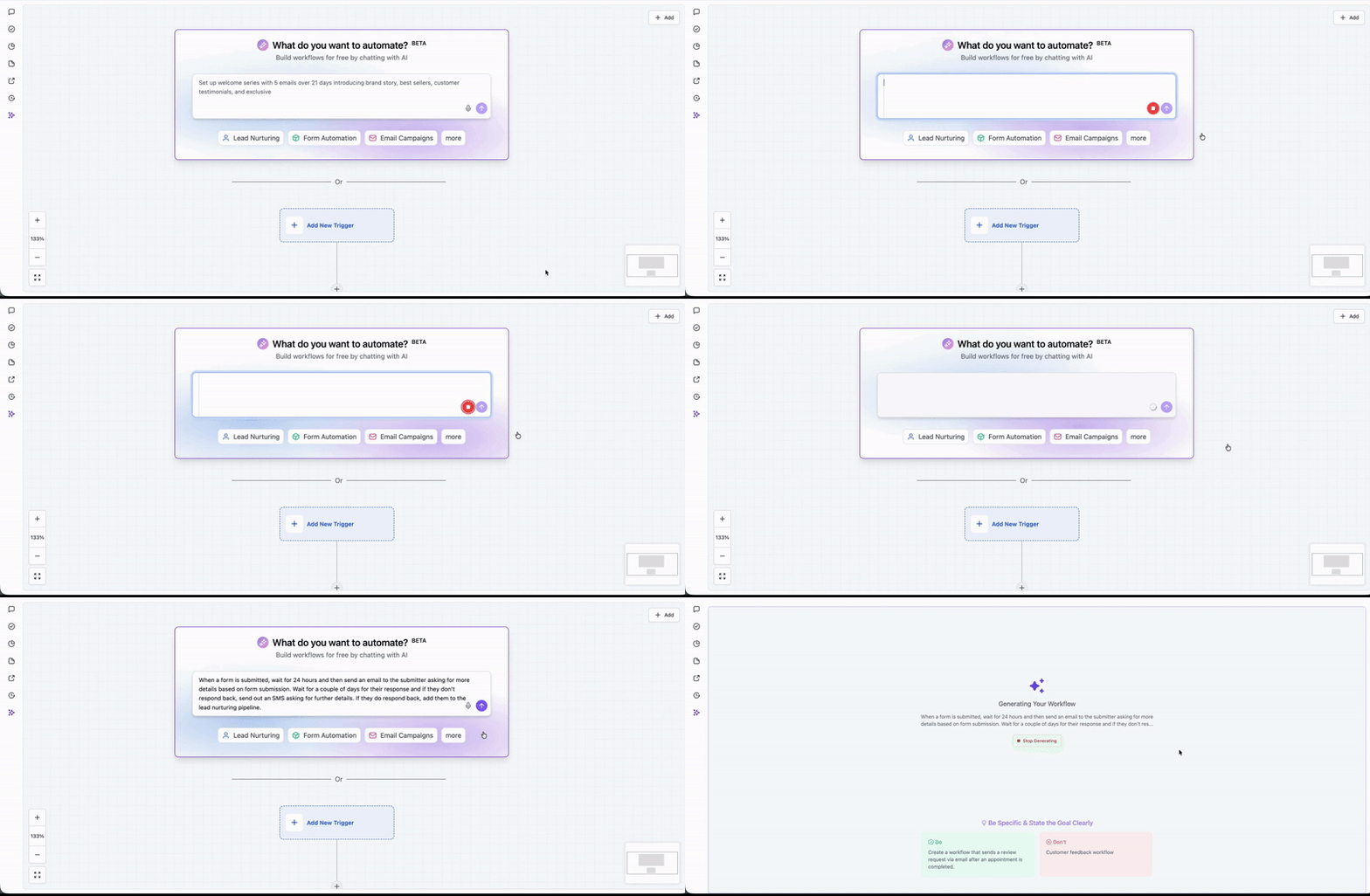
When you click the microphone icon in the AI Builder prompt box, the system listens, transcribes your speech, and automatically generates a workflow based on your instructions.
Think of it as turning your ideas into automations in real time.
For example, you could say:
“Send a welcome email immediately after form submission, wait one day, then send a follow-up SMS if they haven’t replied.”
Within seconds, the AI Builder creates:
No manual dragging. No configuration guesswork.
Automation tools are powerful, but they can sometimes feel overwhelming, especially for new users.
Voice dictation changes that.
Instead of navigating menus and selecting triggers manually, you describe your logic and let the AI structure it.
You think in sentences, not dropdowns. Speaking your logic mirrors how you naturally plan processes.
Voice input makes workflow creation easier for users who prefer speaking over typing.
Teams across different regions can dictate workflows in their preferred language.
One of the standout advantages of Voice Dictation in AI Builder is its ability to recognize and process multiple supported languages.
You’re not limited to English.
This is particularly valuable for:
You can speak naturally, and the AI handles transcription and structure accordingly.
Getting started is simple.
Navigate to Workflows inside your platform.
Open the Workflow Builder.
Step 3
Locate the AI Builder prompt box.
Step 4
Click the microphone icon.
Speak your workflow idea clearly and naturally.
Wait a few seconds while the system transcribes and generates your workflow.
Review the generated automation.
Refine, adjust, or publish your workflow.
That’s it.
Here are real-world examples of how you can use voice dictation effectively.
“After someone books an appointment, send a confirmation email, then send a reminder SMS one hour before the appointment.”
“When an opportunity moves to Won, send a thank-you email and notify the onboarding team.”
“If a contact clicks the email link but doesn’t reply within two days, send a follow-up SMS.”
“When a new contact is tagged VIP, notify the sales manager immediately.”
The clearer your instructions, the more accurate the workflow generation.
To maximize accuracy, follow these simple tips.
For example, say:
“Trigger when a form is submitted. Send an email immediately. Wait two days. If no response, send an SMS.”
Structured thinking produces cleaner workflows.
Voice dictation isn’t limited to workflow generation.
Inside AI Assistant, you can:
For example:
“How can I improve my appointment reminder workflow?”
The assistant will respond with actionable suggestions — all without typing.
At the time of writing, Voice Dictation is part of the AI Builder and AI Assistant functionality. There is no separate line-item pricing specifically for the microphone feature itself.
If your account uses AI tools that are usage-based, pricing would follow the standard AI usage structure already in place for your plan.
There is no additional per-dictation fee.
Always check your platform’s AI usage pricing if your plan includes consumption-based billing.
Even with powerful AI, clarity matters.
Avoid:
Clear instructions equal clean automations.
Voice recognition works across supported languages within the platform. If your language is supported, you can dictate workflows naturally.
Yes. After the AI builds your workflow, you can manually adjust triggers, actions, and timing before publishing.
Workflow AI does not automatically reference past conversations unless context is included in your prompt.
Availability depends on platform updates. Always check your current version for microphone support.
Yes. You can include delays, conditions, branching logic, and notifications — just describe them clearly.
Voice Dictation in AI Builder & Assistant changes how we think about automation.
Instead of navigating technical menus, you simply describe your process. It’s faster. More intuitive. More accessible.
For busy marketers, agencies, and business owners, this means:
If you’ve been spending too much time clicking through workflow settings, it may be time to start speaking your automations into existence.
If you’ve ever struggled with A2P 10DLC registration, you know how confusing and rejection-prone the process can be. One small
Build Powerful Workflows Just by Speaking Imagine building a complete automation without typing a single word. No clicking through triggers.
Design smarter. Move faster. Stop switching tabs. If you’ve ever designed something in Canva, downloaded it, uploaded it into your
The Smart Way to Re-Engage Leads Without Manual Work Leads don’t always ghost you on purpose. Sometimes they get busy.
AI automation is evolving fast. If you’ve ever wished you could fully control AI tasks inside your CRM without relying
Build Powerful Workflows Just by Speaking Imagine creating an entire workflow without touching your keyboard. No typing. No complicated setup.

Pick a design that fits your brand.

Integrate it seamlessly.

Tailor it to your business needs.

Start generating leads and sales.
No account yet?
Create an AccountWe use cookies to improve your experience on our site. By using our site, you consent to cookies.
Websites store cookies to enhance functionality and personalise your experience. You can manage your preferences, but blocking some cookies may impact site performance and services.
Essential cookies enable basic functions and are necessary for the proper function of the website.
These cookies are needed for adding comments on this website.
Google reCAPTCHA helps protect websites from spam and abuse by verifying user interactions through challenges.
These cookies are used for managing login functionality on this website.
Stripe is a payment processing platform that enables businesses to accept online payments securely and efficiently.
Service URL: stripe.com (opens in a new window)
Statistics cookies collect information anonymously. This information helps us understand how visitors use our website.
Google Analytics is a powerful tool that tracks and analyzes website traffic for informed marketing decisions.
Service URL: policies.google.com (opens in a new window)
Clarity is a web analytics service that tracks and reports website traffic.
Service URL: clarity.microsoft.com (opens in a new window)
SourceBuster is used by WooCommerce for order attribution based on user source.
You can find more information in our Privacy Policy and .



