Blog
Native Google Forms Integration in GoHighLevel Workflows
A Smarter, Simpler Way to Automate Google Form Submissions
Google Forms has long been one of the most popular tools for collecting information. From lead capture and surveys to applications and onboarding forms, businesses love its simplicity. The downside? Getting that data into GoHighLevel usually meant relying on third-party tools like Zapier or Pabbly.
That changes now.
GoHighLevel has introduced a native Google Forms integration inside Workflows, allowing you to capture responses and trigger automations directly inside the platform. No middleware. No extra subscriptions. No fragile connections.
This update brings Google Forms fully into the HighLevel automation ecosystem and opens the door to faster, cleaner, and more scalable workflows.
Key Takeaways
- Native Google Forms integration inside GoHighLevel Workflows
- Trigger workflows from new Google Form responses
- Map form answers directly to CRM fields
- Use responses in If/Else logic and branching paths
- Retrieve historical form submissions
- Eliminate Zapier and other third-party automation tools
Why This Integration Is a Big Deal
Before this update, Google Forms worked outside your automation stack. You could collect data, but moving it into GoHighLevel required extra tools, added costs, and more points of failure.
With the native integration, Google Forms becomes a first-class data source inside HighLevel.
This means:
- Faster automation execution
- Lower monthly costs
- Fewer things to break
- Cleaner workflow logic
For agencies, this also means fewer support tickets and simpler setups for clients.
How the Google Forms Integration Works
The integration works in two main ways inside Workflows:
- Triggers that fire when a Google Form receives a response
- Actions that allow you to find forms and retrieve responses
Importantly, this is a read-only integration. GoHighLevel reads data from Google Forms and then acts on it through workflows.
Google Forms Triggers in GoHighLevel
New Response Trigger Near Real-Time
The primary trigger introduced is New Response.
This trigger activates whenever someone submits a response to a selected Google Form.
How it works:
- Responses are checked every 5 minutes
- Each submission triggers the workflow only once
- Designed for reliability and scale rather than instant firing
This approach ensures responses are never missed while avoiding duplicate triggers.
Data Passed into the Workflow
When the trigger fires, you gain access to rich response data, including:
- Form ID
- Form name
- Individual question answers
- Respondent information
- Submission timestamp
This data can be used throughout the workflow for personalization, tagging, routing, and conditional logic.

Google Forms Actions in Workflows
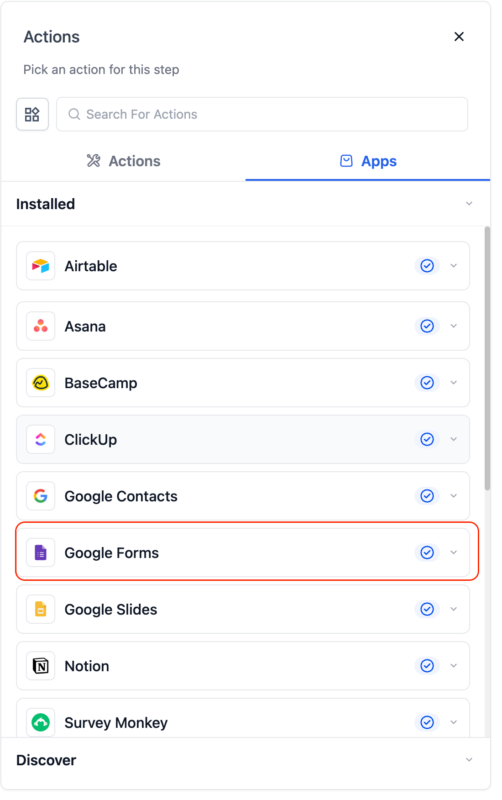
Triggers are just the beginning. The real power comes from the Google Forms actions now available inside workflows.
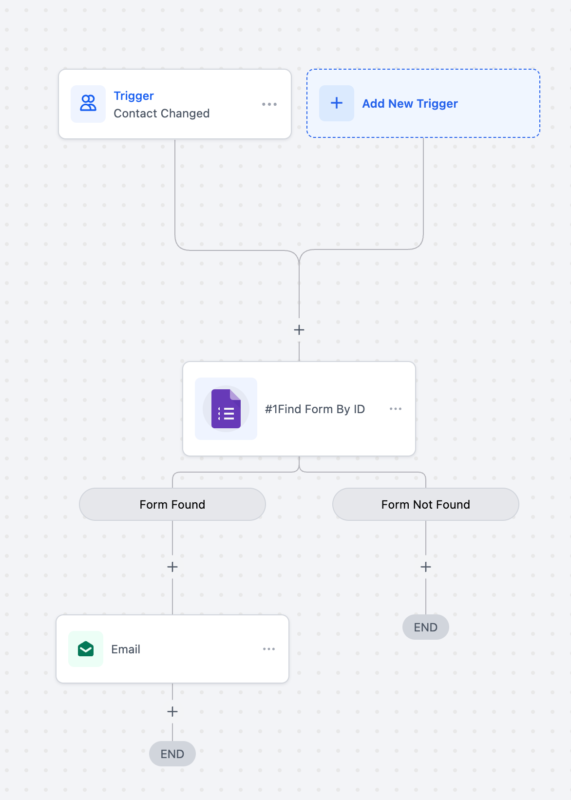
Find Form by ID
Locate a Google Form using its Form ID. This action supports dynamic values, making it ideal for advanced workflows.
Find Form by Name
Select a Google Form from a dropdown list and retrieve its details.
Find Response by ID
Pull a specific response using the Form ID and Response ID. Useful when working with historical data or multi-step workflows.
Find Responses by Form Name
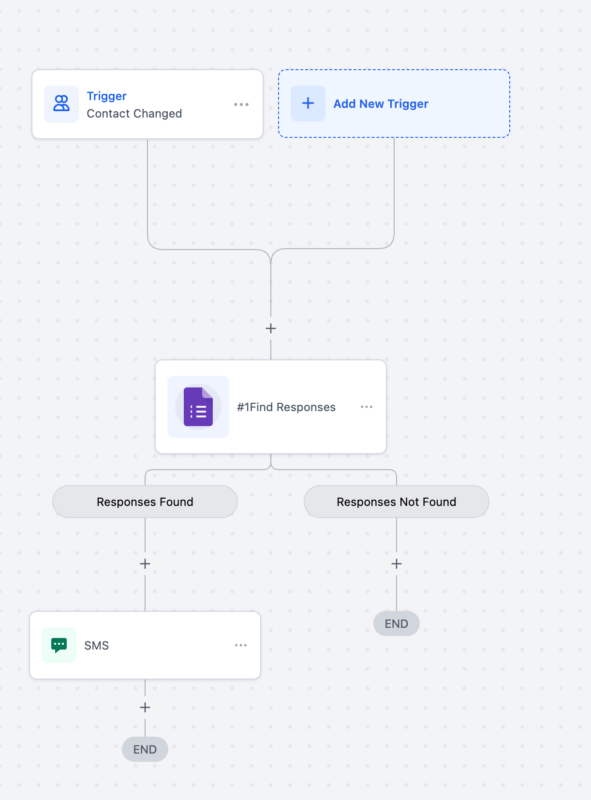
Retrieve all responses from a selected Google Form. Pagination is supported using a next page token, allowing you to process large datasets.
Each action includes Found and Not Found paths, making it easy to build conditional logic without workarounds.

Real-World Workflow Examples
Lead Intake and Qualification
A marketing agency uses a Google Form as a lead intake form.
Workflow flow:
- A new Google Form response triggers the workflow.
- Contact is created or updated
- The budget question is evaluated
- High-budget leads are assigned to sales
- Low-budget leads enter a nurture sequence
This entire process runs automatically, without manual review.
Applications and Onboarding
A coaching business uses Google Forms for applications.
Workflow logic:
- Approved answers trigger a booking link
- Incomplete applications trigger follow-up reminders
- Disqualified applicants receive a polite rejection email
Everything is personalized using the form responses.
Internal Data Collection
Google Forms is also perfect for internal workflows.
Examples include:
- Team requests
- Client feedback
- Project intake forms
Responses can trigger tasks, notifications, or internal pipelines automatically.
Step-by-Step Setup Guide
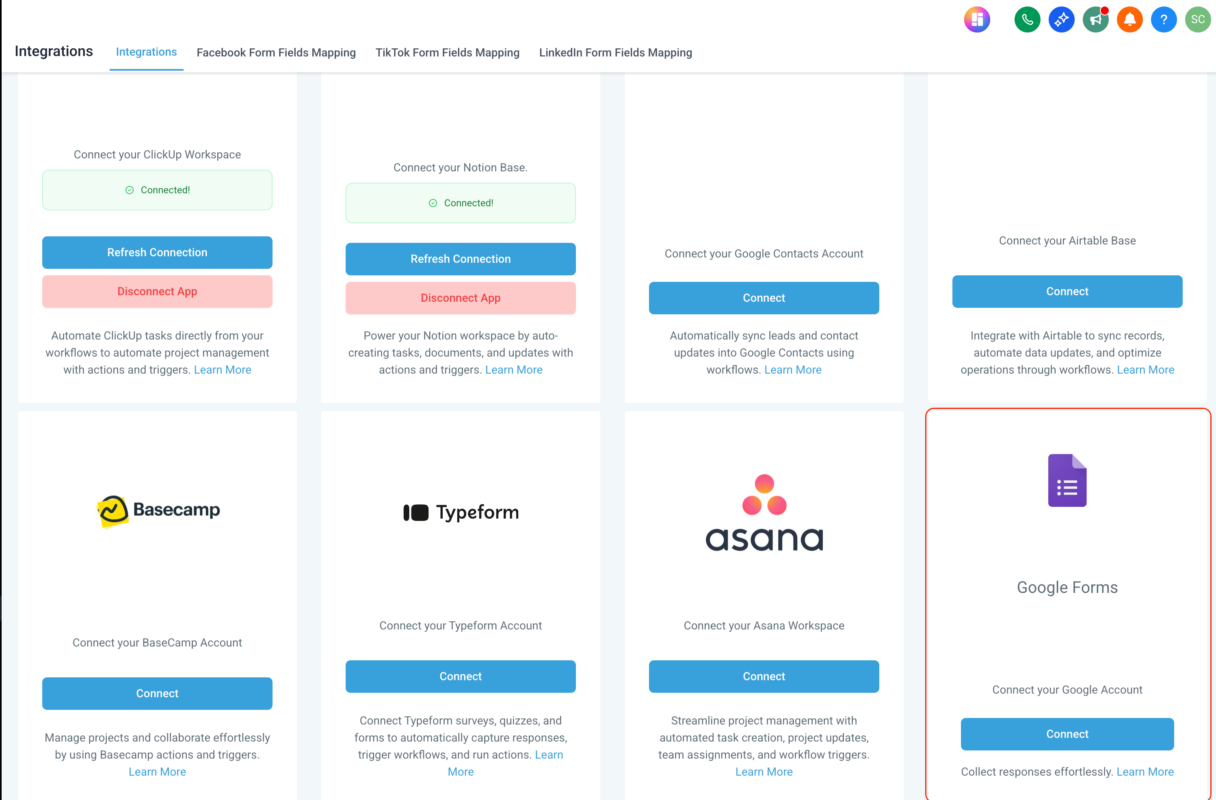
Step 1: Connect Google Forms
- Go to Settings → Integrations → Google Forms
- Authenticate using Google OAuth
- Select the Google account that owns the forms
This connection can be managed or removed at any time.

Step 2: Create or Edit a Workflow
- Navigate to Automations → Workflows
- Create a new workflow or edit an existing one
- Add a trigger or action
- Search for Google Forms
Step 3: Configure the Trigger or Action
- Select the Google Form
- Map response fields
- Save and publish the workflow
You can immediately test using real or historical form submissions.
Using Form Data Inside Workflows
Once responses are inside the workflow, you can:
- Map answers to CRM fields
- Use responses in If/Else conditions
- Personalize emails, SMS, and notifications
- Apply tags based on answers
- Route contacts to different pipelines
This turns simple form submissions into intelligent automation flows.
Pricing Breakdown
Google Forms actions inside workflows are billed at standard automation rates.
What this means:
- Each Google Forms action execution counts as a workflow action
- No additional integration fee
- No third-party automation costs
This often results in lower overall automation costs compared to Zapier or Pabbly, especially at scale.
Known Limitations and Important Notes
- Triggers run near real-time with 5-minute polling
- Integration is one-way only
- GoHighLevel reads data from Google Forms
- Data is not written back to Google Forms
Despite these limitations, the integration covers the vast majority of form automation use cases.
Frequently Asked Questions
Does this replace Zapier for Google Forms?
For most users, yes. Native workflows are faster, cheaper, and more reliable.
Can I pull old Google Form responses?
Yes. Use Google Forms actions to retrieve historical submissions.
Can I use responses in conditional logic?
Yes. All responses are available inside If/Else workflow actions.
Is this compatible with custom fields?
Absolutely. Responses can be mapped directly to custom CRM fields.
How fast do workflows trigger?
Responses are checked every 5 minutes, providing near real-time automation.
Final Thoughts
The native Google Forms integration inside GoHighLevel Workflows is a major step forward for automation-first businesses. It removes unnecessary complexity, reduces costs, and allows Google Forms to function as a powerful intake tool directly inside HighLevel.
If you already rely on Google Forms, this feature alone can streamline your entire automation stack and unlock smarter, more scalable workflows.
Table of Contents
Native Google Forms Integration in GoHighLevel Workflows
A Smarter, Simpler Way to Automate Google Form Submissions Google Forms has long been one of the most popular tools
GoHighLevel Adds Rich WhatsApp Media Messaging to New Conversations UI
Send files and captions and manage media inside WhatsApp chats directly from your GoHighLevel CRM GoHighLevel has launched a game-changing
Native WhatsApp Voice Notes with Transcriptions in GoHighLevel
WhatsApp conversations work best when they feel natural. With GoHighLevel’s latest enhancement, outbound WhatsApp voice notes sent from the Conversations
Calendly Phone Number Sync in HighLevel
If you’ve ever booked a call with a client through Calendly, only to find their phone number missing from your
Media Library for WhatsApp Templates in GoHighLevel
If you’ve ever built WhatsApp templates inside GoHighLevel, you know how powerful they are—and also how repetitive the process could
PayPal Keyless OAuth Integration Guide for GoHighLevel
A Fresh Look at Easier Payments in GoHighLevel Payments are one of those parts of your business that should work.