🎈Winter Savings Special Sale 🎁
00
DAYS
00
HRS
00
MINS
00
SECS


AI automation is evolving fast. If you’ve ever wished you could fully control AI tasks inside your CRM without relying on third-party tools, Manus integration inside HighLevel Workflows makes that possible.
With native Manus triggers and actions, you can now create, manage, and continue AI-driven tasks directly inside the workflow builder. That means structured AI logic, lifecycle tracking, and multi-step automation — all in one place.
Instead of juggling external automation platforms, you can build powerful AI workflows natively.
Manus is a task-based AI system built around structured prompts and responses.
Each Manus task:
This structure makes Manus ideal for controlled AI processes like:
By integrating Manus into HighLevel Workflows, you can both send instructions to AI and respond to AI task lifecycle events.
That’s where the real automation power lives.
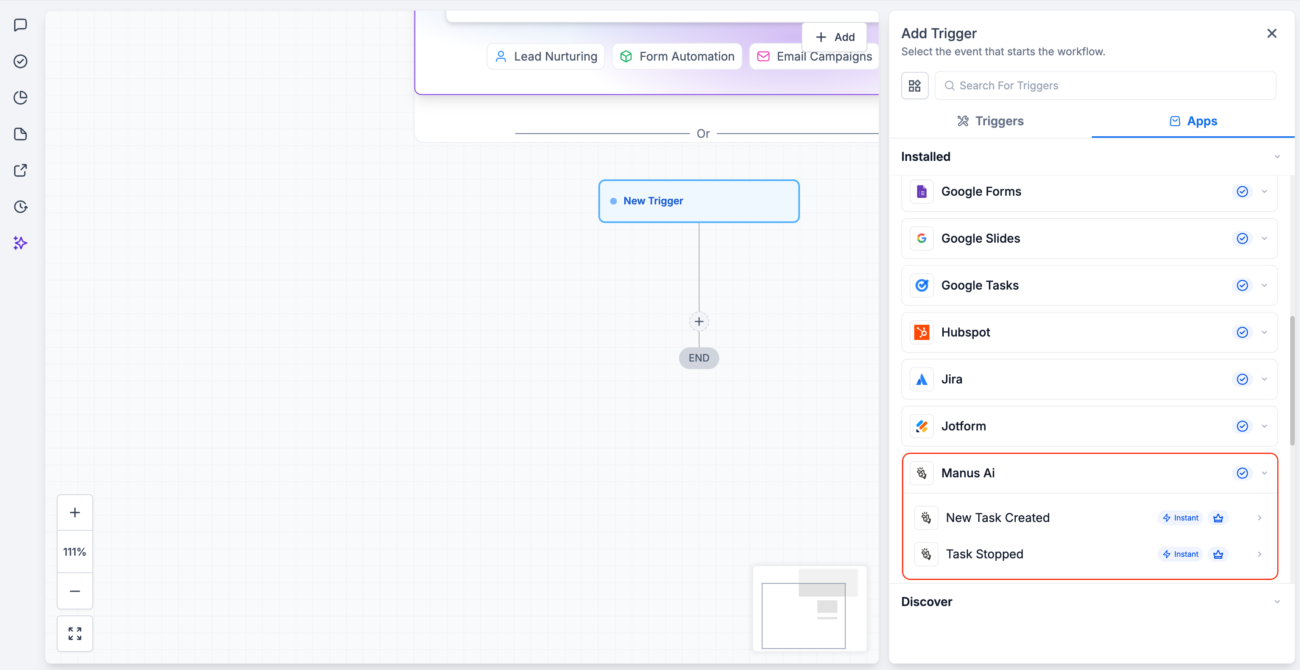
Triggers allow workflows to start when specific Manus events occur.
This trigger fires when a Manus task is created through a workflow action.
Example use case
Important detail
Tasks created directly inside the Manus app will not fire workflow triggers. Only tasks created via workflow actions qualify.
This trigger fires when a Manus task is stopped or completed.
Example use case
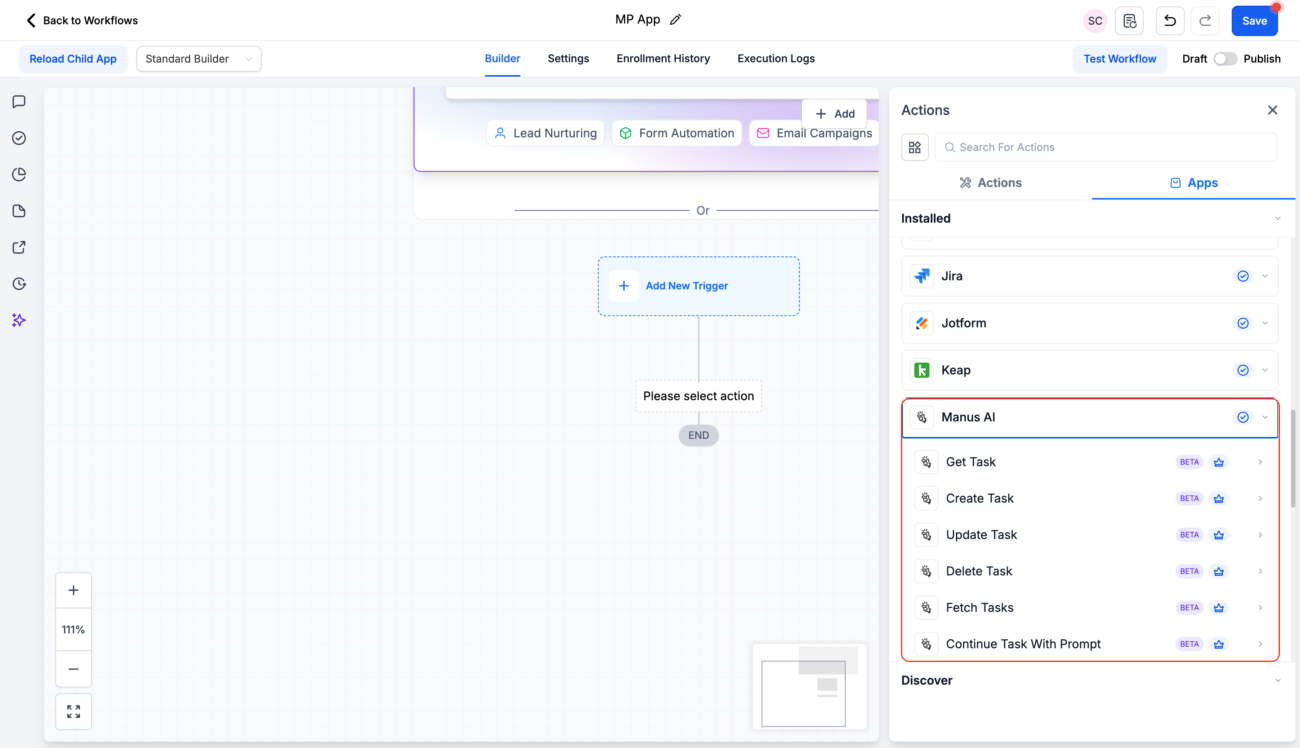
Actions allow workflows to control Manus directly.
Here’s what you can do.
Starts a new Manus task using a defined prompt.
Example
When a new opportunity is created, automatically generate a personalized outreach email using Manus.
Retrieves task details, including status and outputs.
Best used when you want to pull AI results back into the workflow.
Modifies metadata or parameters of an existing task.
Useful when adjusting AI instructions mid-process.
Retrieves a list of tasks. Ideal for reporting or batch logic.
Removes a Manus task permanently.
Helpful for cleanup processes or abandoned flows.
Adds a follow-up prompt to an existing task.
This is powerful for:
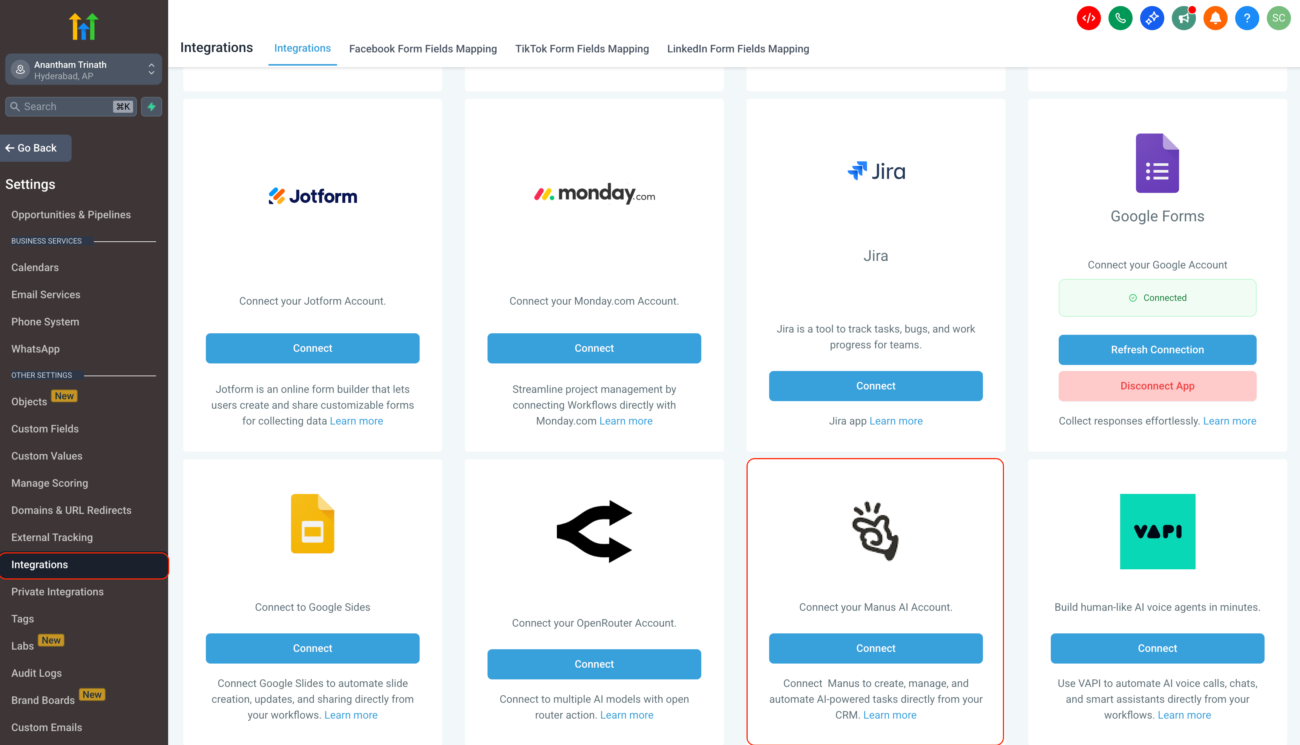
You can connect Manus in two ways.
This is critical.
When using the Create Task action, store the returned Task ID in a custom field.
You will need the Task ID to:
Without storing it, you cannot reliably manage multi-step AI workflows.
Example workflow structure
That’s how you build structured AI systems inside your CRM.
It’s important to understand how billing works.
So you may have:
They are billed independently.
Here are practical examples.
Here are frequent reasons tasks may fail.
To troubleshoot:
Go to Automation → Workflows → Execution Logs.
The logs will show detailed error information.
Most commonly because the task was created directly in Manus instead of through a workflow action. Only workflow-created tasks fire triggers.
Yes. All Manus triggers and actions follow HighLevel premium workflow billing rules.
No. Manus AI usage is billed separately by Manus.
Manus triggers and actions transform HighLevel Workflows into a structured AI automation engine.
You’re no longer limited to simple prompt responses. Instead, you can:
When you combine triggers, actions, and proper Task ID management, you unlock powerful AI automation directly inside your CRM.
If you’re serious about building advanced, structured AI processes, Manus integration is one of the most powerful workflow upgrades available today.
If you’ve ever struggled with A2P 10DLC registration, you know how confusing and rejection-prone the process can be. One small
Build Powerful Workflows Just by Speaking Imagine building a complete automation without typing a single word. No clicking through triggers.
Design smarter. Move faster. Stop switching tabs. If you’ve ever designed something in Canva, downloaded it, uploaded it into your
The Smart Way to Re-Engage Leads Without Manual Work Leads don’t always ghost you on purpose. Sometimes they get busy.
AI automation is evolving fast. If you’ve ever wished you could fully control AI tasks inside your CRM without relying
Build Powerful Workflows Just by Speaking Imagine creating an entire workflow without touching your keyboard. No typing. No complicated setup.

Pick a design that fits your brand.

Integrate it seamlessly.

Tailor it to your business needs.

Start generating leads and sales.
No account yet?
Create an AccountWe use cookies to improve your experience on our site. By using our site, you consent to cookies.
Websites store cookies to enhance functionality and personalise your experience. You can manage your preferences, but blocking some cookies may impact site performance and services.
Essential cookies enable basic functions and are necessary for the proper function of the website.
These cookies are needed for adding comments on this website.
Google reCAPTCHA helps protect websites from spam and abuse by verifying user interactions through challenges.
These cookies are used for managing login functionality on this website.
Stripe is a payment processing platform that enables businesses to accept online payments securely and efficiently.
Service URL: stripe.com (opens in a new window)
Statistics cookies collect information anonymously. This information helps us understand how visitors use our website.
Google Analytics is a powerful tool that tracks and analyzes website traffic for informed marketing decisions.
Service URL: policies.google.com (opens in a new window)
Clarity is a web analytics service that tracks and reports website traffic.
Service URL: clarity.microsoft.com (opens in a new window)
SourceBuster is used by WooCommerce for order attribution based on user source.
You can find more information in our Privacy Policy and .



