🎈Winter Savings Special Sale 🎁
00
DAYS
00
HRS
00
MINS
00
SECS



If you’ve ever booked a call with a client through Calendly, only to find their phone number missing from your CRM — you’re not alone.
Many business owners, agencies, and sales teams rely on Calendly to streamline appointment bookings. But until now, syncing contact phone numbers from Calendly into HighLevel often required some manual copy-pasting, extra clicks, and data clean-up.
That ends today.
With HighLevel’s latest Phone Number Sync enhancement for Calendly, your contact details — especially those all-important phone numbers — now flow directly into your CRM. Automatically. Accurately. Seamlessly.
🔄 Phone numbers are now automatically synced from Calendly into HighLevel contacts
🔍 Pull from either the meeting location field or form fields
🛑 Skip sync when no number is provided—no errors or interruptions
🔧 Choose your source using a simple mapping modal
🤝 Sync preferences apply across shared calendars
💬 Ideal for phone-based outreach, SMS workflows, and appointment follow-ups
In today’s fast-paced business world, automation isn’t a luxury—it’s a necessity. You shouldn’t have to dig through Calendly invites or emails just to grab someone’s number before a call.
Here’s why this new feature is such a big deal:
No more copying numbers from Calendly appointment details into HighLevel contacts. You save time and reduce mistakes.
HighLevel ensures the right number is synced with the right contact, reducing the risk of misdials or failed SMS campaigns.
Whether it’s a sales call, a customer support follow-up, or a reminder SMS—you need the number in place and ready to use.
With synced phone numbers, your workflows, campaigns, and triggers can run flawlessly based on phone data.
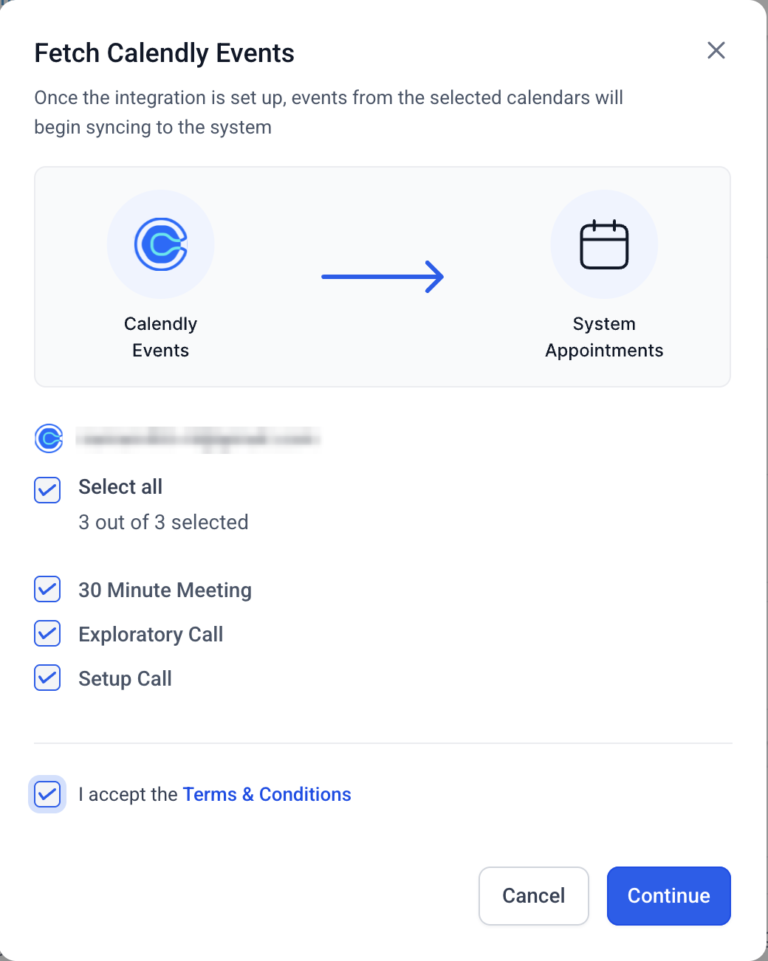
Let’s say a client enters their phone number in the location field when booking a meeting in Calendly.
If your Calendly form doesn’t ask for a phone number separately, HighLevel now detects and imports that number directly into the contact’s profile.
Example:
No extra steps. No prompts. No confusion.
Just automatic syncing that “just works.”
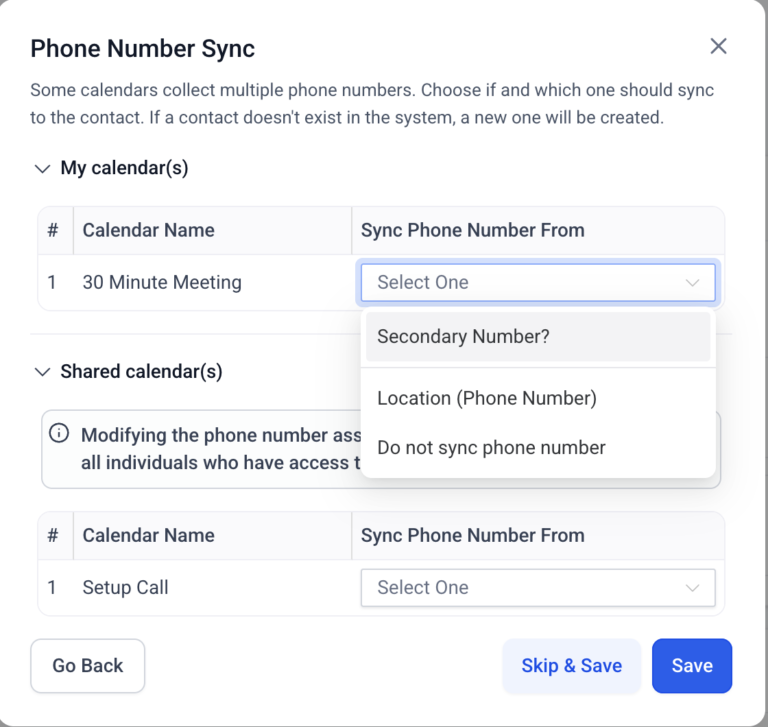
If you’re collecting phone numbers via a custom form field in Calendly, HighLevel gives you even more control.
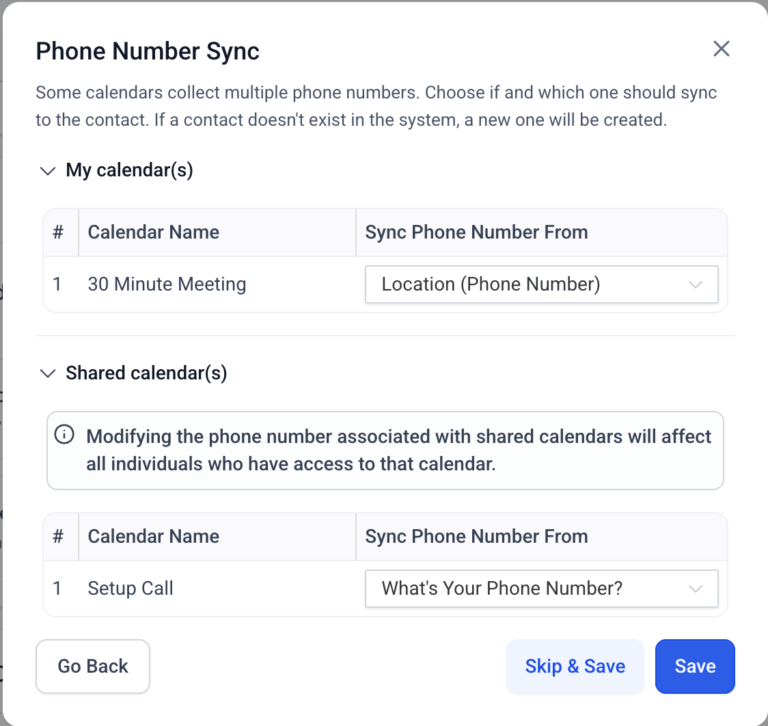
When setting up the calendar connection, you’ll be shown a mapping screen with these options:
✅ Select a form field where the invitee entered their phone number
✅ Use the location field if that’s more reliable
✅ Choose “Do Not Sync” if you don’t want to pull any numbers
This gives teams full flexibility and avoids duplicate or conflicting data.
Perfect for:
Calendly appointments without phone numbers?
No problem.
HighLevel handles those cases gracefully by skipping the sync step entirely.
No pop-ups.
No errors.
No unnecessary alerts.
This keeps your workflows clean and distraction-free, even when phone data isn’t available.
Got multiple team members sharing one Calendly calendar?
Here’s a smart touch: when any user updates the phone number sync preferences for that shared calendar, the change applies to everyone linked to it.
This ensures:
📞 Sales Calls
Sales reps can immediately access synced phone numbers in contact records after a Calendly booking—allowing fast, efficient outreach with zero data hunting.
💬 SMS Campaigns
Automated SMS reminders or confirmation messages can now trigger automatically, using the phone number pulled directly from the booking.
🧑💻 Support Appointments
Your support team can jump into calls knowing the number is already there, saving time and improving customer experience.
Setting up phone sync with Calendly in HighLevel is simple. Here’s how:
Go to your HighLevel dashboard
Click Settings > Integrations
Find and connect your Calendly account
Authorize access
Pro tip: Keep instructions clear so invitees know exactly where to enter their number.
Click Save
That’s it! You’re ready to start syncing phone numbers automatically.
Good news — there’s no extra cost to use this feature. Phone number syncing from Calendly is included in your existing HighLevel subscription.
Cost: $0
Availability: Included with all standard calendar integrations
No limits: Use across all users, calendars, and sub-accounts
This specific sync feature is designed for Calendly only. Other integrations may vary.
Currently, phone format validation depends on other HighLevel settings. Make sure to enable number validation under Phone System > Settings if needed.
Syncing phone numbers from Calendly appointments into HighLevel might seem like a minor upgrade — but it solves a major bottleneck for teams who rely on clean, automated workflows.
Whether you’re closing deals, sending reminders, or managing bookings at scale, this small automation saves time, reduces friction, and keeps your contact data accurate — where it belongs.
So if you’re already using Calendly + HighLevel, now’s the perfect time to take advantage of this smart sync feature.
Less manual work. More automation. Cleaner contact data.
It’s a win all around.
If you’ve ever struggled with A2P 10DLC registration, you know how confusing and rejection-prone the process can be. One small
Build Powerful Workflows Just by Speaking Imagine building a complete automation without typing a single word. No clicking through triggers.
Design smarter. Move faster. Stop switching tabs. If you’ve ever designed something in Canva, downloaded it, uploaded it into your

The Smart Way to Re-Engage Leads Without Manual Work Leads don’t always ghost you on purpose. Sometimes they get busy.
AI automation is evolving fast. If you’ve ever wished you could fully control AI tasks inside your CRM without relying
Build Powerful Workflows Just by Speaking Imagine creating an entire workflow without touching your keyboard. No typing. No complicated setup.

Pick a design that fits your brand.

Integrate it seamlessly.

Tailor it to your business needs.

Start generating leads and sales.
No account yet?
Create an AccountWe use cookies to improve your experience on our site. By using our site, you consent to cookies.
Websites store cookies to enhance functionality and personalise your experience. You can manage your preferences, but blocking some cookies may impact site performance and services.
Essential cookies enable basic functions and are necessary for the proper function of the website.
These cookies are needed for adding comments on this website.
Google reCAPTCHA helps protect websites from spam and abuse by verifying user interactions through challenges.
These cookies are used for managing login functionality on this website.
Stripe is a payment processing platform that enables businesses to accept online payments securely and efficiently.
Service URL: stripe.com (opens in a new window)
Statistics cookies collect information anonymously. This information helps us understand how visitors use our website.
Google Analytics is a powerful tool that tracks and analyzes website traffic for informed marketing decisions.
Service URL: policies.google.com (opens in a new window)
Clarity is a web analytics service that tracks and reports website traffic.
Service URL: clarity.microsoft.com (opens in a new window)
SourceBuster is used by WooCommerce for order attribution based on user source.
You can find more information in our Privacy Policy and .



