



Automating Subaccount Pauses After Payment Failure
Automating Subaccount Pauses After Payment FailureRunning a SaaS business or an agency that manages multiple subaccounts requires an effective system
Contents
Automating Subaccount Pauses After Payment Failure
Running a SaaS business or an agency that manages multiple subaccounts requires an effective system for handling failed payments. If clients fail to pay, it’s crucial to have an automated process in place to pause their access until payment is successfully processed.
With GoHighLevel SaaS Mode, you can automate subaccount suspension when a payment fails, preventing revenue loss while maintaining an efficient billing system. In this guide, we’ll walk through how to set up an automated workflow that detects failed payments and pauses subaccounts accordingly.
Key Takeaways
✅ Automate Payment Failure Handling – Use workflows to auto-pause subaccounts when payments fail.
✅ Prevent Unpaid Access – Ensure that only paying clients have active subaccounts.
✅ Reduce Manual Work – Eliminate the need for manually tracking and suspending non-paying accounts.
✅ Improve Business Efficiency – Maintain seamless operations and avoid revenue loss with smart automation.
Setting Up Automating Subaccount Pauses After Payment Failure
Before setting up the automation, you must enable SaaS Mode in GoHighLevel, which allows you to manage client subscriptions and automatically handle payments through Stripe.
Step 2: Configure Payment Failure Notifications
GoHighLevel provides payment failure alerts that can be used as workflow triggers. When a client’s payment fails, the system generates an event that you can use to trigger actions.
How to Enable Failed Payment Notifications
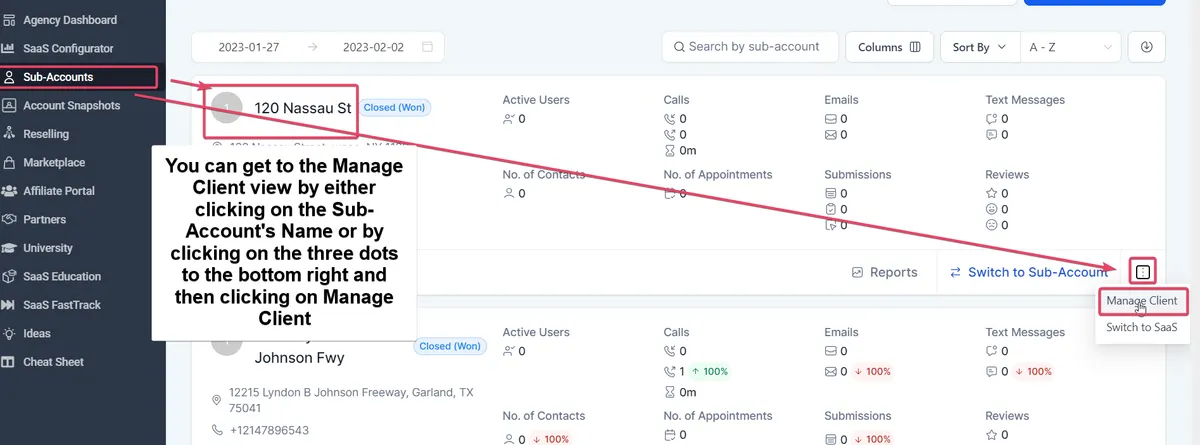
- Go to Agency Settings > Select SaaS Mode.
- Connect your Stripe account if you haven’t already.
- Navigate to Billing Settings and enable Failed Payment Alerts.
Step 3: Create an Automation Workflow to Pause Subaccounts
Once you have the payment failure event, the next step is to create a workflow that automatically pauses subaccounts when a payment fails.
How to Set Up the Workflow in GoHighLevel
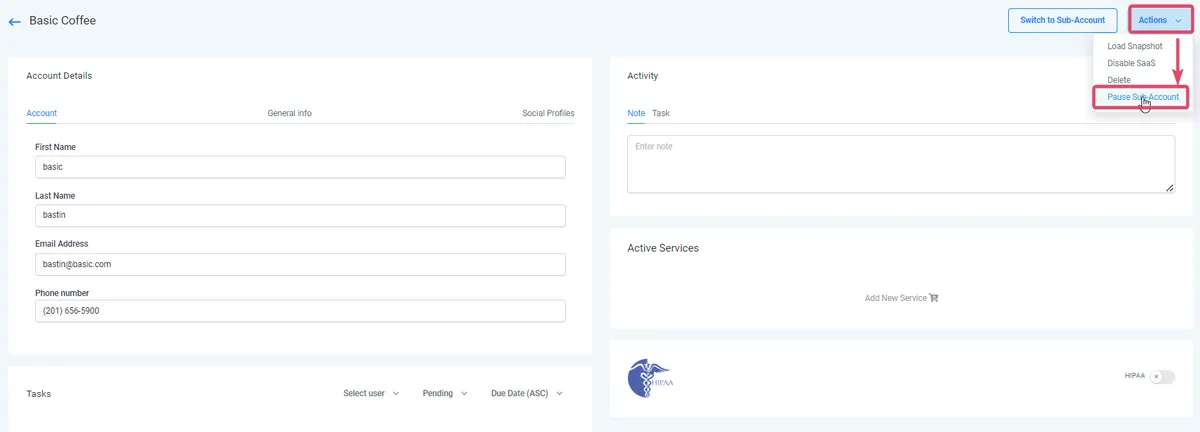
- Go to Automation → Workflows → Click Create New Workflow.
- Select Start from Scratch and name it “Pause Subaccount on Failed Payment”.
- Click Add Trigger and select Stripe Payment Failed.
- Set the Action to Update Subaccount Status → Change status to Paused.
- Optionally, send an automated email notification to the client informing them of the failed payment and pause status.
- Click Save & Publish.
Step 4: Notify Clients and Provide a Payment Link
To avoid losing customers permanently, provide an easy way for them to update their payment details and reactivate their subaccount.
How to Send a Payment Update Link
- Add a step in the workflow: Send an Email with a subject like “Action Required: Update Your Payment Details”.
- Include a button linking to Stripe’s hosted payment update page.
- Optionally, send an SMS with the same message to increase the chances of the client resolving the issue quickly.
Step 5: Automatically Reactivate Subaccounts After Payment
Once the client updates their payment method and successfully processes the payment, their subaccount should automatically reactivate.
Steps to Automate Reactivation
Create another workflow with the trigger: Stripe Payment Successful.
Set the Action to Change
- Subaccount Status → Active.
- Notify the client via email/SMS confirming that their access has been restored.
Auto-Pause Subaccounts on Payment Failure with GoHighLevel SaaS 🚀
| Feature | Availability |
|---|---|
| Automated Billing & Subscription Management | ✅ Yes, included in SaaS Mode |
| Stripe Integration for Payment Handling | ✅ Yes, available in SaaS Mode |
| Automatic Subaccount Suspension on Failed Payments | ✅ Yes, enabled through automation |
| Workflow Automation for Notifications & Reactivation | ✅ Yes, supports email & SMS alerts |
| Plan Requirement | 🔹 SaaS Mode ($497 Agency Pro Plan) |
| Availability in the $297 Plan? | ❌ No, SaaS Mode is not available |
| Upgrade Needed? | ✅ Yes, upgrade to the $497 Agency Pro Plan to enable this feature |
Conclusion
Automating the pausing of subaccounts after failed payments ensures that your business runs smoothly, preventing unpaid access while giving clients a seamless way to update their billing details. With GoHighLevel’s SaaS Mode and workflow automation, you can manage payments efficiently, reduce manual work, and secure your revenue stream.
💡 Next Steps: Implement this automation today to protect your business and streamline your client management. 🚀
For more in-depth setup details, refer to the official GoHighLevel SaaS Mode setup guide here: GoHighLevel SaaS Mode Guide.
Quick answers
Frequently asked questions
What happens if a client fails multiple payments?
If a client fails multiple payments, the workflow can be set up to send multiple reminders before permanently deactivating the subaccount.
Can I charge a reactivation fee for paused subaccounts?
Yes! You can create an additional step in the workflow that charges a reactivation fee before restoring access.
How do I prevent accidental suspensions?
You can add a grace period (e.g., 3 days) before automatically pausing the subaccount.
Does this work with PayPal?
Currently, SaaS Mode only supports Stripe for automated billing and subscription management.
Where this leaves you
Skip the build. Import a working GoHighLevel account instead.
Everything above is buildable by hand, and most people never finish. A snapshot is the same setup already made: funnels, pipelines, calendars, the prebuilt website and the automations, written for one industry and wired together before it reaches you.
- Delivered within 24 hours by email
- Install on unlimited sub-accounts you manage
- 20 hours of setup help across 15 days
Keep reading
All articles

HighLevel Voice AI Pricing: How the Per-Minute Billing Actually Works
Voice AI is billed per minute of active call time, in two layers. How to model the cost for your own call volume and when the AI Employee bundle is cheaper.
July 21, 20255 min read


GoHighLevel SaaS Plan Pricing: What Agency Pro Costs and When It Pays
Agency Pro is $497 a month. What the extra $200 over Unlimited actually buys, how rebilling margin works, and the client count where it starts paying for itself.
August 14, 20245 min read


Gohighlevel Pricing: Unveiling the Perfect Plan
HOW DOES Gohighlevel Pricing WORK? The digital marketing landscape is ever-evolving, and businesses are in a constant race to stay ahead.
February 13, 20237 min read